A Creator's Field Guide
The Big Idea: Stop Prompting. Start Directing.
Uni-1 is fundamentally different from other image generators. It doesn't just pattern-match keywords — it actually reasons
through your intent before generating a single pixel. This means:
● You don't need "prompt engineering" tricks or keyword stuffing
● Describe what you want, not what you don't want (no negative prompts supported)
● Think of yourself as a creative director giving a brief to a talented artist
● The clearer your vision, the better the result — but Uni-1 can also work with loose, exploratory prompts
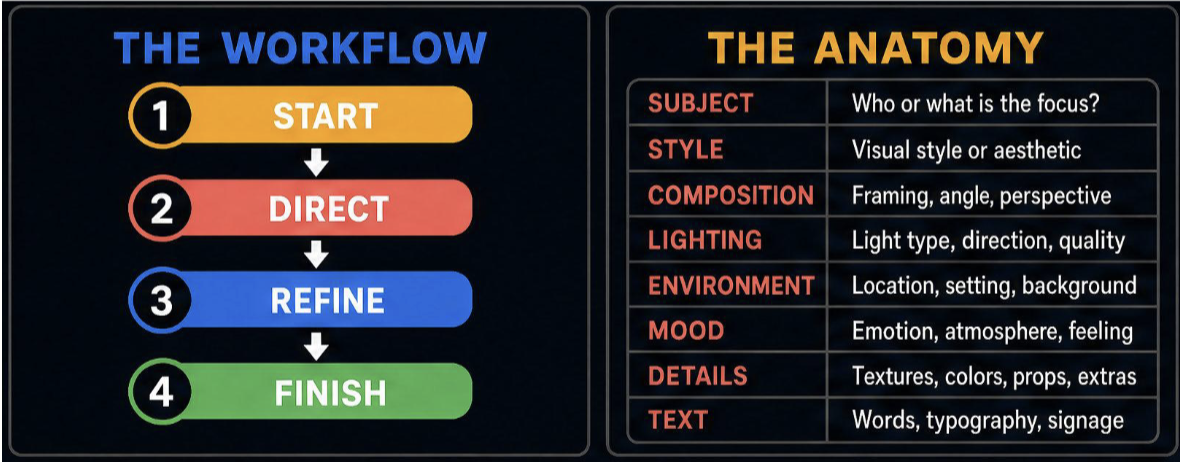
The workflow is: Start → Direct → Refine → Finish
Create vs Modify: The First Decision
Everything starts with one question: Am I creating something new, or changing something that already exists?
Create Image → Generates a brand-new composition. Can be inspired by references. Modify Image → Edits a specific input
image. Preserves composition unless told otherwise.
Rule of thumb:
● "Make this photo look like nighttime" → Modify
● "Create a new scene in the style of this photo" → Create
● If the output should look like a version of your input → Modify
● If it should feel inspired but new → Create
8 Prompt Templates That Cover 90% of Use Cases
1. The Fast Start (80% of use cases)
Template: A [subject], in [style], with [lighting], [camera/composition],
[environment/background], mood: [emotion], details: [key specifics]
Example: A ceramic artist shaping a lopsided bowl, documentary photography style,
soft window lighting, close-up shot, cluttered home studio background, mood:
focused and quiet, details: clay-covered hands, imperfect texture, tools
scattered on wooden table
When to use: Exploration, first ideas, quick outputs.
2. ? The Cinematic Control
Template:
Subject: [who/what]
Style: [editorial / documentary / fine art / etc.]
Scene:
- Environment: [where]
- Time of day: [lighting conditions]
- Weather/atmosphere: [mood elements]
Camera:
None
- Shot type: [close-up / wide / medium / aerial]
- Lens: [wide angle / telephoto / macro]
- Angle: [eye level / low angle / overhead]
Details: [specific textures, colors, props]
Mood: [overall feeling]
Example:
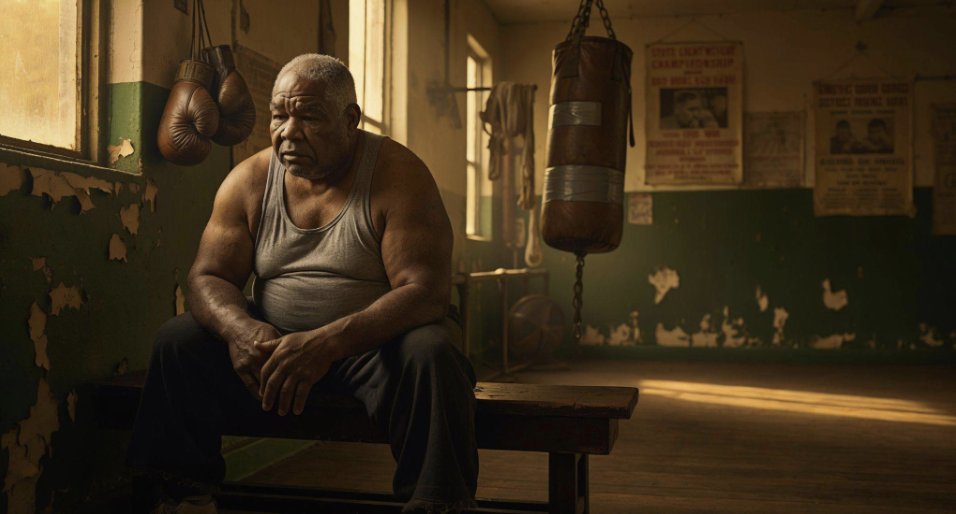
Subject: A retired boxer sitting alone in an empty gym
Style: Documentary photography, gritty and honest
Scene:
- Environment: Aging boxing gym with peeling paint
- Time of day: Late afternoon, golden light through dusty windows
- Weather/atmosphere: Quiet, contemplative
Camera:
- Shot type: Medium shot, waist up
- Lens: 50mm natural perspective
- Angle: Slightly low, looking up at the subject
Details: Worn leather gloves hanging nearby, sweat-stained bench, faded
championship posters on walls
Mood: Dignified melancholy, the weight of a career
When to use: When you need precise visual control. Cinematic scenes, editorial work, portfolio pieces.
3. The Direct Edit
Template: Change [specific element] to [new version]. Keep everything else the
same.
Example: Change the sky to a dramatic sunset with deep orange and purple clouds.
Keep everything else the same.
Pro tip: Be surgical. The more specific you are about what to change AND what to preserve, the better the edit.
4. The Multi-Reference Fusion
Template:
IMAGE1 (STYLE): [description of style reference]
IMAGE2 (CHARACTER): [description of character reference]
IMAGE3 (COMPOSITION): [description of layout reference]
Create a [subject] that combines the visual style of IMAGE1, the character
from IMAGE2, in the composition/layout of IMAGE3. [Additional details about
the scene.]
When to use: When you need to blend multiple visual ideas — a character in a specific style in a specific pose.
5. The Layout Control
Template:
Create a [format] with the following layout:
- [Position 1]: [element description]
- [Position 2]: [element description]
- [Position 3]: [element description]
Text: "[exact text to render]"
Style: [overall aesthetic]
Example:
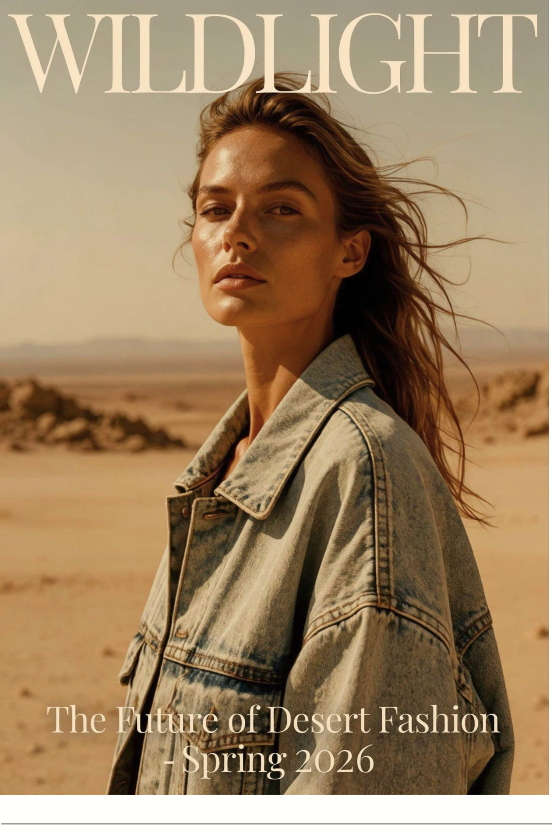
Create a magazine cover with the following layout:
- Top third: Title "WILDLIGHT" in bold serif font
- Center: Portrait of a woman wearing an oversized vintage denim jacket
- Bottom: Subtitle "The Future of Desert Fashion — Spring 2026"
Style: High-fashion editorial, muted earth tones, natural lighting
Pro tip: Uni-1 is exceptionally good at text rendering. Put desired text in quotes.
6. The Storyboard Generator
Template: Create a [N]-panel storyboard showing: Panel 1: [scene]. Panel 2:
[scene]. Panel 3: [scene]. Consistent character throughout. Style: [aesthetic].
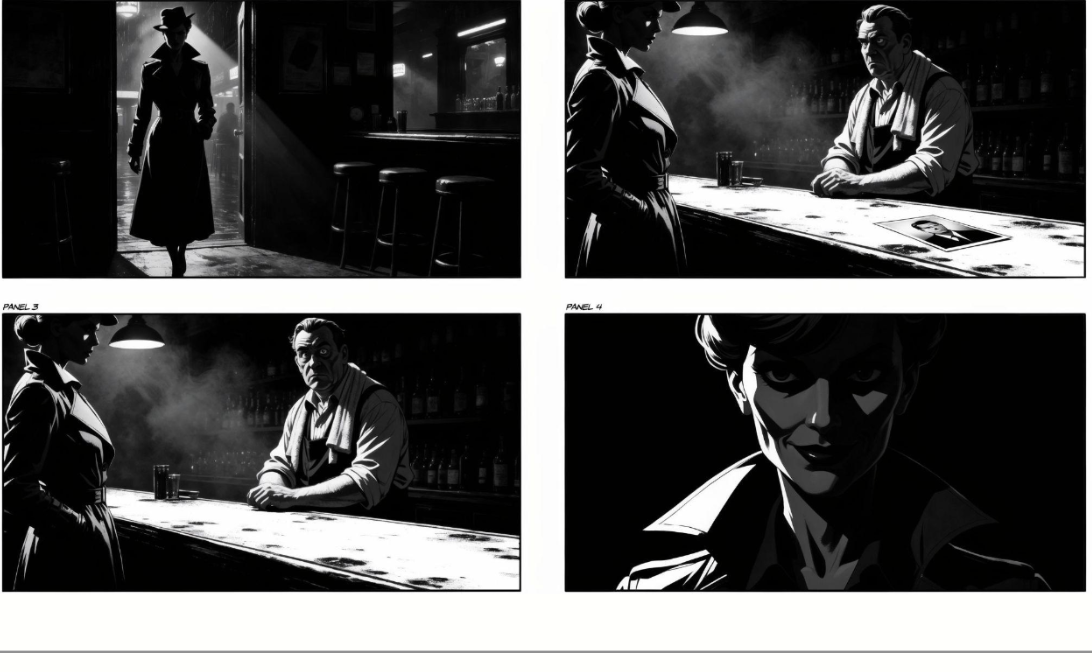
Example: Create a 4-panel storyboard showing: Panel 1: A detective enters a dimly
lit bar. Panel 2: She slides a photo across the counter to the bartender. Panel
3: The bartender recognizes the person and looks nervous. Panel 4: Close-up of
the detective's knowing smile. Consistent character throughout: woman in her
40s, sharp features, dark trenchcoat. Style: Film noir, high contrast black and
white.
7. The Loose / Creative Mode
Template: [Vibe or feeling]. [A few evocative words or an abstract concept.]
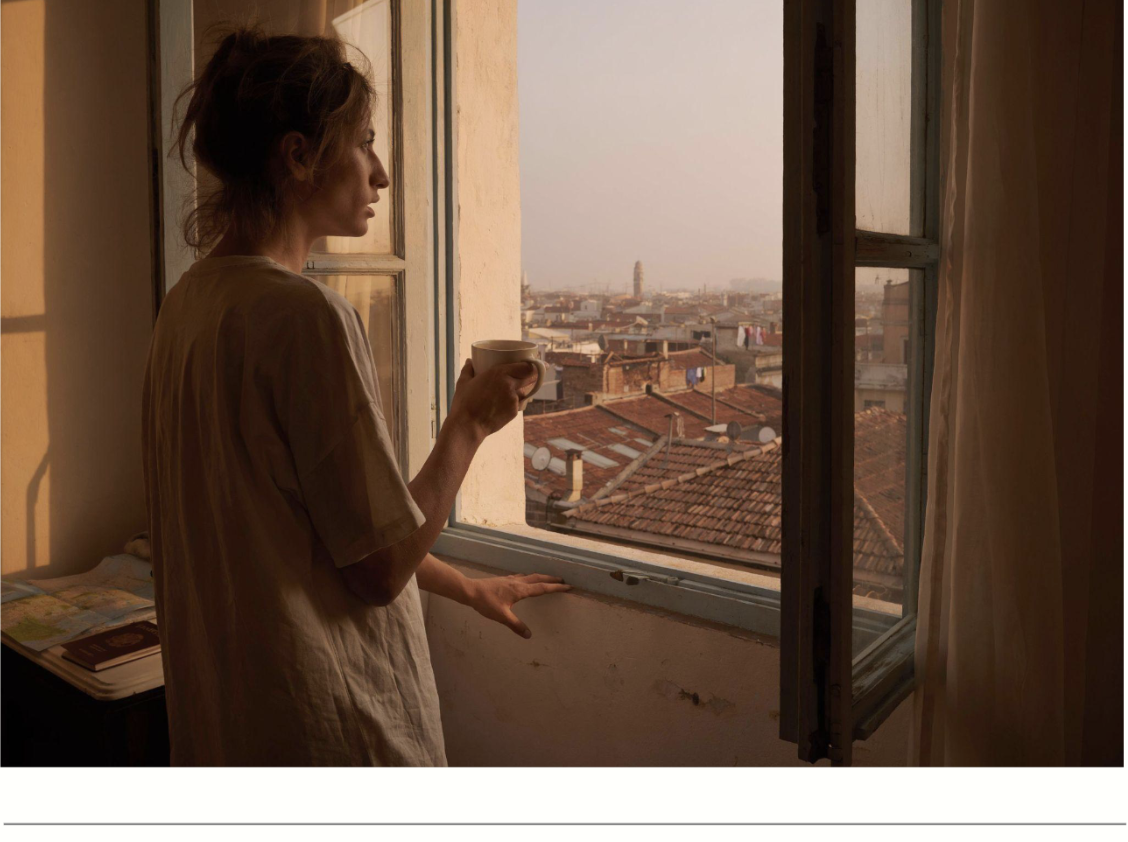
Example: The feeling of waking up in a foreign city for the first time. Morning
light. Unfamiliar rooftops. Coffee steam. Possibility.
When to use: When you want to explore and be surprised. Uni-1's reasoning engine can interpret abstract concepts and moods.
8. The Structured JSON
Template:
{
"subject": "...",
"style": "...",
"composition": "...",
"lighting": "...",
"color_palette": "...",
"mood": "...",
"details": ["...", "...", "..."],
"text_elements": ["..."],
"aspect_ratio": "..."
}
When to use: When you want maximum precision and reproducibility. Great for batch work.
The Anatomy of a Great Prompt
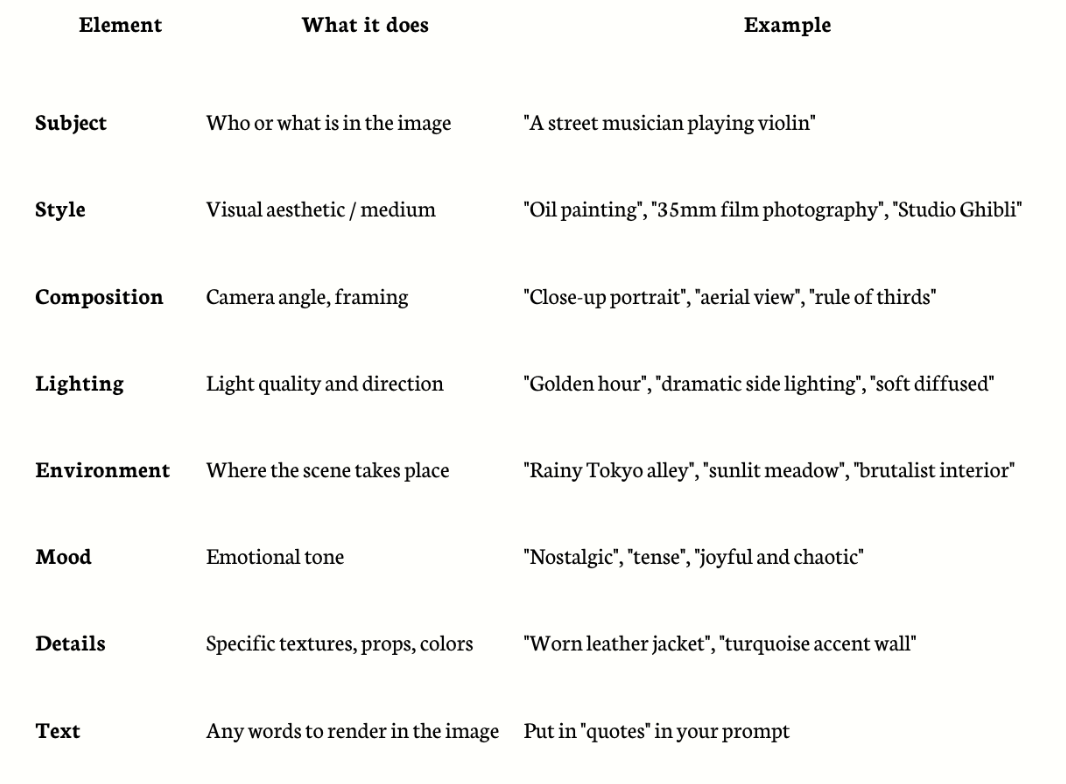
What to Include (the building blocks)
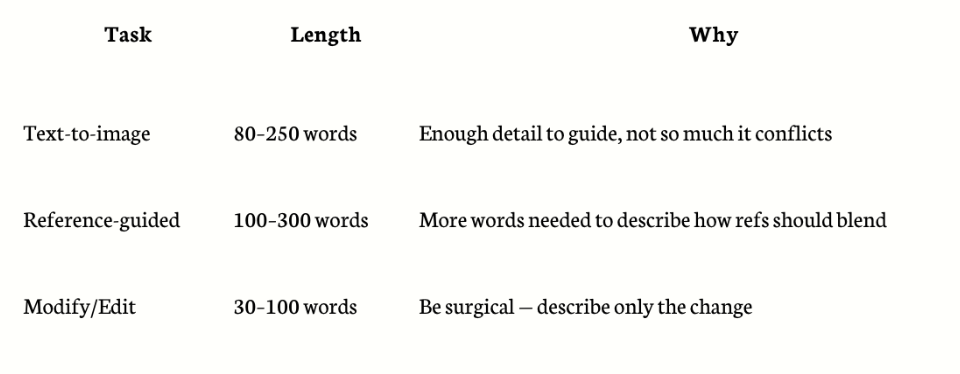
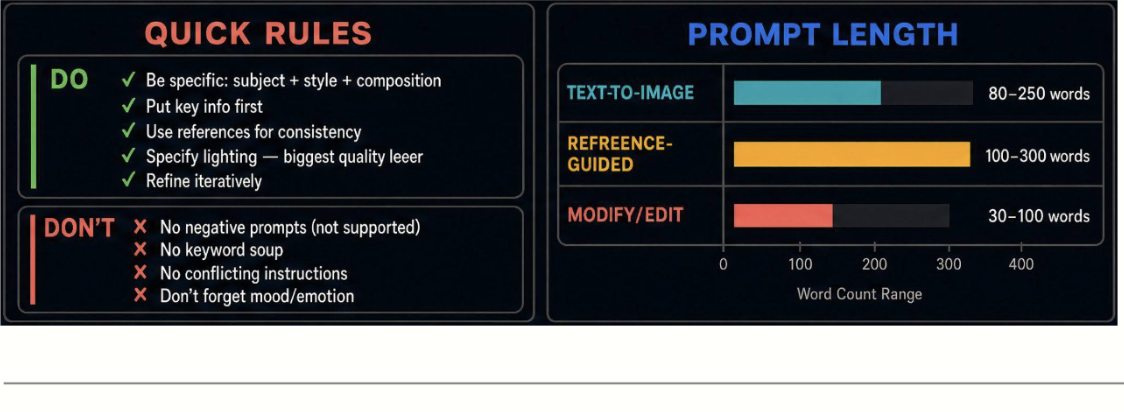
Recommended Prompt Lengths
Weak vs Strong Prompts
❌ Weak: cat in forest
✅ Strong: A tabby cat sitting on a mossy log in an ancient forest at golden hour,
soft dappled light filtering through oak leaves, painterly impressionist style,
warm amber tones, peaceful and serene mood
❌ Weak: product photo of sneaker
✅ Strong: A single white running sneaker on a concrete surface, outdoor urban
environment, clean commercial photography, soft natural shadow, minimalist and
modern feel, shallow depth of field
❌ Weak: make a poster
✅ Strong: Create a movie poster for a sci-fi thriller. Title: "SIGNAL" in large
distressed metallic font at the top. Central image: a lone astronaut standing
before a massive alien structure on a barren planet. Color palette: deep navy,
burnt orange, silver. Mood: awe and isolation. Tagline at bottom: "They weren't
listening. They were waiting."
Working with Reference Images
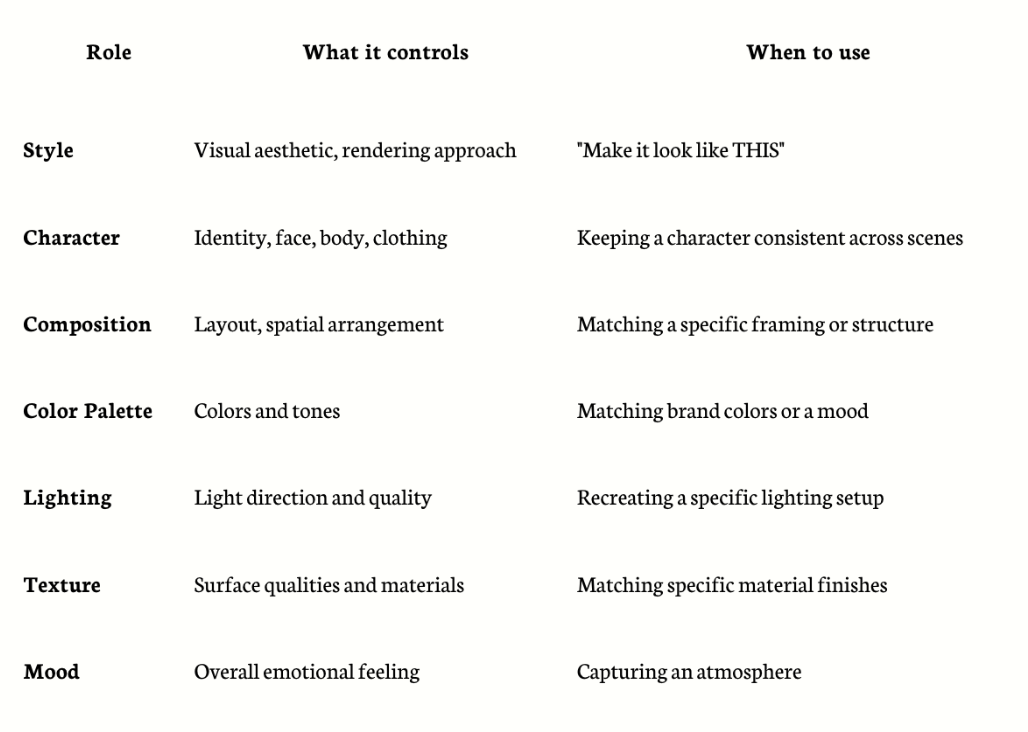
Uni-1 supports up to 9 reference images in Create mode and 8 in Modify mode. Each reference has a role:
Character Consistency Workflow
1. Generate a clean, front-facing reference image of your character
2. Reuse it as IMAGE1 (CHARACTER) in every subsequent scene
3. Keep the label identical across prompts
4. Add scene-specific details in the text prompt
5. The character stays consistent; the world around them changes
5 Core Workflows
Workflow 1: Idea → Final Image
1. Start with a Fast Start prompt (loose, exploratory)
2. Pick the best result
3. Modify to refine details (lighting, color, specific elements)
4. Modify again for final polish
Workflow 2: Reference-Driven Creation
1. Gather 1–3 reference images (style, character, composition)
2. Write a Multi-Reference Fusion prompt
3. Generate
4. Modify to fine-tune
Workflow 3: Fix & Polish
1. Start with any image (generated or uploaded)
2. Use Direct Edit prompts to fix specific issues
3. Iterate: one change at a time works better than trying to fix everything at once
Workflow 4: Precision Composition
1. Sketch or describe your exact layout
2. Use Layout Control or Structured JSON prompt
3. Upload sketch as reference if available
4. Generate and refine
Workflow 5: Exploration → Lock → Iterate
1. Start loose (Creative Mode) — generate many options
2. Find a direction you love — "lock" it by saving
3. Switch to Cinematic Control for precise versions
4. Use Modify for final variations
Quick Rules (The Cheat Sheet)
✅ DO:
● Be specific about subject + style + composition
● Put key instructions early in the prompt
● Use references for consistency
● Describe spatial relationships explicitly ("to the left of", "in the foreground")
● Use quotes for text you want rendered: "SALE 50% OFF"
● Refine iteratively — don't restart from scratch
● Use layout descriptions for complex compositions
● Specify lighting! It's the single biggest quality lever.
❌ DON'T:
● Write negative prompts ("no hands", "without blur") — not supported
● Use keyword soup from other AI tools ("8k, ultra detailed, masterpiece")
● Over-constrain with conflicting instructions
● Expect one prompt to get it perfect — the power is in the workflow
● Forget to mention mood/emotion — it dramatically changes the output
What Uni-1 Is Especially Great At
Based on community feedback and benchmarks:
● Spatial reasoning — Complex multi-subject scenes with correct object placement
● Text rendering — Readable, stylized text in images (posters, signs, UI mockups)
● Character consistency — Same character across multiple generations using references
● Infographics & data visualization — Charts, diagrams, informational layouts
● Multi-panel layouts — Storyboards, comic panels, sequential art
● Cultural styles — Manga, ukiyo-e, film noir, editorial, 76+ styles
● Photo restoration — Bringing old or damaged photos back to life
● Product photography — Clean commercial shots with precise control
● Complex compositions — Multiple characters, detailed environments, layered scenes
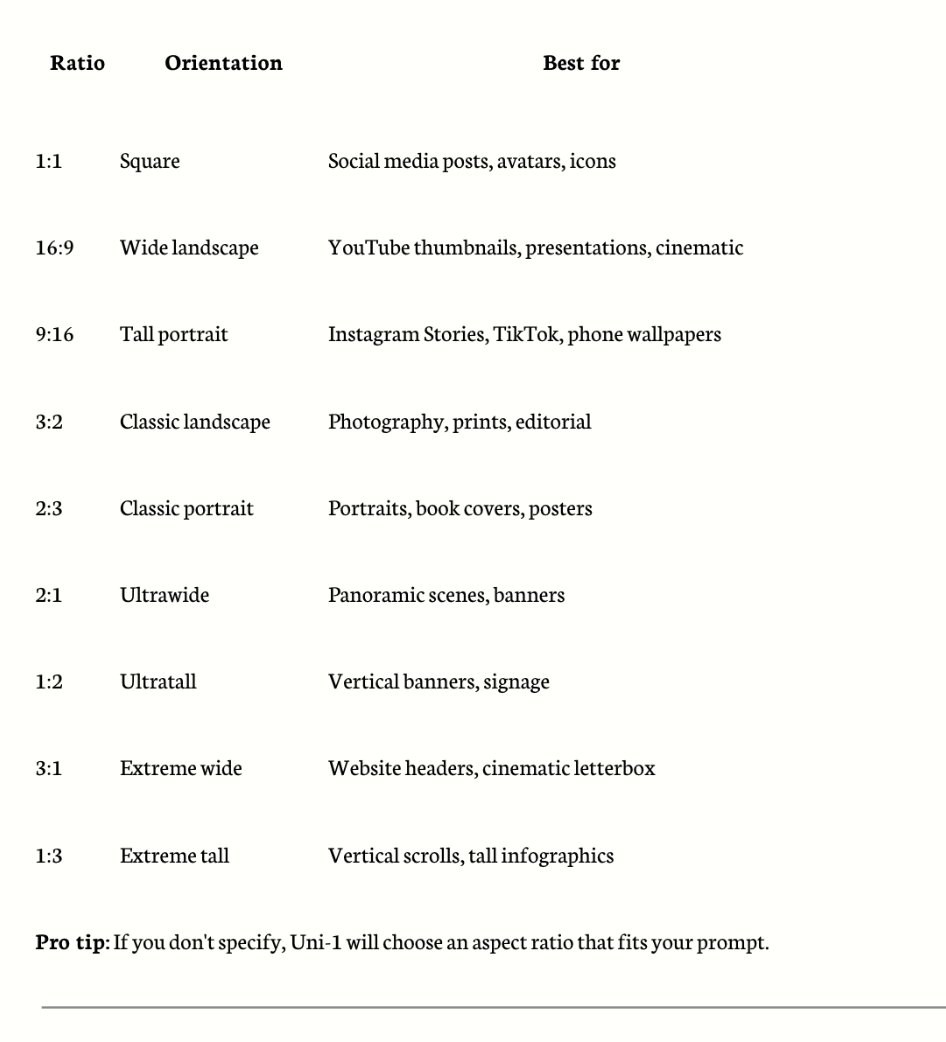
Aspect Ratios
Choose the right canvas for your content:
Pro Tips from the Community
● "Think of Uni-1 as a chess master, not a slot machine — it plans before it generates"
● "I stopped writing 'perfect' prompts. Now I just explain what I want, and Uni-1 figures it out"
● "The biggest unlock was using references. A single style reference image is worth a thousand words of prompt
description"
● "For product shots, describe the ENVIRONMENT and LIGHTING more than the product itself — Uni-1 already
understands objects well"
● "Don't restart when you get something close. Use Modify to push it the last 20%"
● "Web search grounding is incredible for real-world subjects — landmarks, celebrities, specific products. Toggle it on"
● "Multi-panel prompts are a superpower. You can create entire storyboards in a single generation"
● "If you're coming from Midjourney, ditch the style keywords. Write like you're briefing a photographer instead"
Was this article helpful?
That’s Great!
Thank you for your feedback
Sorry! We couldn't be helpful
Thank you for your feedback
Feedback sent
We appreciate your effort and will try to fix the article