Category: Troubleshooting Tags: red thumbs down, Luma Agents, quality judge, credits, automatic retry, Zak, generation quality, credit conservation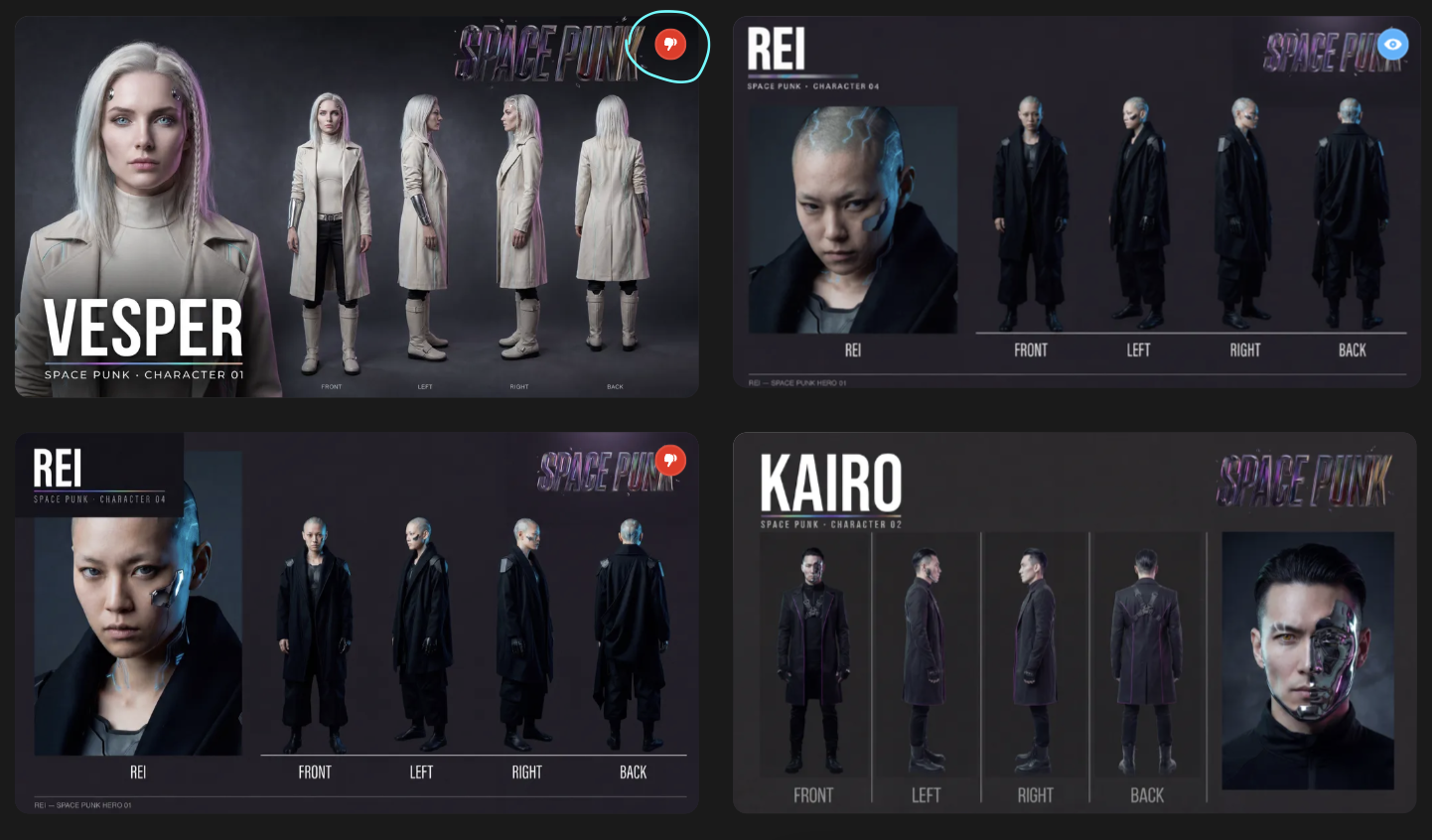
Introduction
The red thumbs down icon in Luma Agents is a built-in quality indicator, not an error message or a failed generation. Understanding what it means—and what it doesn't mean—can save you credits, prevent confusion, and help you get the most out of your Agent sessions. This article explains the quality judge system, why credits are still charged, how to control automatic retries, and best practices for efficient credit usage.
Understanding the Red Thumbs Down Icon
Luma Agent includes a built-in quality judge that automatically evaluates each generation against your project brief. When it determines a result may not meet the quality standard, it marks the generation with a small red thumbs down icon.
This is the Agent's quality opinion—it is not a system error, not a failed generation, and not an indication that the image should be deleted or ignored.
The icon is applied after the generation completes, meaning the image or video was fully created and is available for your review regardless of what the judge thinks. Treat the red thumbs down as one data point, not a final verdict.
Why Am I Still Charged Credits?
Every generation uses compute resources and costs credits, regardless of the judge's assessment. The image or video is fully generated before the judge evaluates it—the thumbs down is applied after the fact, not before. This is how all AI generation platforms work: compute is used whether or not the output meets expectations.
Think of it like printing a document—the paper and ink are consumed whether or not you like how it turned out.
The Judge Is Not Always Right
The quality judge can be overly strict. It sometimes marks perfectly good—even excellent—results with a thumbs down. We strongly recommend reviewing all of your generations yourself rather than dismissing them based on the icon alone. You may find some of your best work carries a thumbs down simply because the judge was too critical.
Your creative judgment always takes priority over the judge's assessment.
Common Reasons the Judge Flags Generations
The judge frequently flags known challenges in AI generation that are limitations of current technology, not bugs:
- Face identity drift from reference images
- Hand and finger anatomy issues
- Mirror reflection physics
- Tattoo or detail inconsistency across edits
- Gesture control in video
These are areas where all AI models still struggle, and retrying may not produce a different result. If you're happy with a generation that carries a thumbs down, use it—the icon has no effect on the quality of the output itself.
Why Does the Agent Retry on Its Own?
When the judge rejects a generation, the Agent may automatically attempt to regenerate in pursuit of a better result. This can consume additional credits without you explicitly requesting it.
To prevent unwanted automatic retries, tell the Agent at the start of each session:
"Generate one asset at a time and wait for my approval before creating more."
If the Agent is retrying something you're already happy with, tell it to stop and use the current version. You are always in control—the Agent will follow your instructions over the judge's assessment.
What's Coming Next: Zak
A new adjudication system called Zak is currently in development. Zak will provide significantly better quality assessment and—critically—will be able to cancel or stop some generations before they complete, helping prevent wasted credits in certain cases. Stay tuned for updates as this rolls out.
Credit Conservation Best Practices
Following this workflow will help you get the most out of your credits and avoid unexpected consumption.
1. Start with Text and Images, Not Video
Chat with the Agent to develop your concept first—describe your scenes, characters, mood, and style in text. Generate small test images to lock in the look before committing to video. Images cost a fraction of what video costs, making them ideal for early-stage exploration.
2. Tell the Agent: One at a Time, Wait for Approval
At the start of every session, instruct the Agent:
"Generate only ONE asset at a time. Wait for my approval before creating anything else."
Without this instruction, the Agent may iterate freely—generating batches of images or videos on its own and consuming credits quickly. This also prevents the judge from triggering automatic retries you didn't ask for.
3. Keep Characters and Scenes Consistent
To reduce re-dos caused by the Agent generating unwanted variations, be explicit with your consistency instructions:
- For characters: "Use the same face, same expression, same hair"
- For scenes: "Use the same exact background, same position, same lighting, same mood"
4. Build a Storyboard Before Generating Video
Once your images and concept feel right, organize them on the canvas. This gives the Agent clear references and reduces unexpected outputs when you move to video generation.
5. Preview Video at 360p First
When you're ready for video, generate at Ray3.14 360p—this is the most credit-efficient resolution. Review the motion and composition at draft quality, then only upscale your best results to 720p or 1080p.
6. Start a New Chat If the Agent Drifts
If the Agent starts forgetting your instructions or making repeated errors, click "+ Add Chat" at the top of the chat window to start a fresh conversation in the same Board. Re-state your key requirements (style, characters, mood) and the Agent will pick up from there with a refreshed context.
7. Monitor Your Usage
Keep an eye on your credit balance: go to https://app.lumalabs.ai → click Usage in the left sidebar for a full breakdown by Board.
For a full credit cost breakdown by resolution and model: https://lumalabs.ai/pricing
Troubleshooting
Why did I get charged credits for a generation with a red thumbs down?: Every generation uses compute resources regardless of the judge's assessment. The image or video is fully created before the judge evaluates it—credits are consumed at the point of generation, not at the point of approval. This applies to all AI generation platforms.
The Agent keeps retrying generations I'm happy with—how do I stop this?: At the start of your session, instruct the Agent: "Generate only ONE asset at a time. Wait for my approval before creating anything else." If the Agent is already retrying something you like, simply tell it to stop and use the current version. Your instructions override the judge.
Should I delete generations that have a red thumbs down?: No. The red thumbs down is the judge's opinion, not an indication of actual quality. Review all generations yourself—the judge is frequently too strict and may flag excellent results. Many creators find their best work carries a thumbs down.
The judge keeps flagging my character's hands and face—is something wrong?: Hand and finger anatomy, face identity drift, and similar issues are known limitations of current AI technology across all platforms, not bugs in Luma Agents. Retrying may not produce a different result. If the generation is otherwise acceptable, consider using it. These limitations are being actively addressed in ongoing model development.
My Agent is generating too many assets and consuming credits quickly—what should I do?: Start a new chat by clicking "+ Add Chat" at the top of the chat window, then re-state your instructions clearly: "Generate only ONE asset at a time. Wait for my approval before creating anything else." Also start with images rather than video to keep costs low while you develop your concept.
Frequently Asked Questions (FAQs)
1. Does the red thumbs down mean my generation failed? No. The red thumbs down is the Agent's quality judge flagging that a result may not meet the project brief standard. The generation is complete, fully viewable, and usable. It is not a system error, not a failed generation, and not a reason to delete the output. Always review it yourself before deciding.
2. Can I turn off the quality judge or prevent automatic retries? You cannot disable the judge, but you can prevent automatic retries by instructing the Agent at the start of each session: "Generate only ONE asset at a time. Wait for my approval before creating anything else." This ensures the Agent waits for your input rather than retrying based on the judge's assessment.
3. What is Zak and when will it be available? Zak is a new adjudication system currently in development that will replace the current quality judge. It will provide significantly better quality assessment and will be able to cancel or stop some generations before they complete, helping prevent wasted credits in certain cases. A specific release date has not been announced—stay tuned for updates.
4. Why does the judge flag hands, faces, and reflections so often? These are known limitations of current AI generation technology across all platforms, not specific bugs in Luma Agents. Face identity drift, hand anatomy, mirror physics, tattoo inconsistency, and gesture control in video are areas where all AI models still struggle. The judge flags them frequently because they are genuinely difficult to get right—but retrying may not produce a better result.
5. What is the most credit-efficient way to work in Luma Agents? Start with text and images to develop your concept before moving to video. Instruct the Agent to generate one asset at a time and wait for approval. Preview video at Ray3.14 360p before upscaling. Build a storyboard before generating video. Monitor your usage at https://app.lumalabs.ai → Usage in the left sidebar.
Related Articles
- How Much Does It Cost Per Generation? https://lumalabs.ai/pricing
Original Author: Chris Roebuck, Luma AI – Customer Support
With contributions from: Irina Manoila, Celina Borquez, Nathan McClean, Martin Espinoza, and David Barona
Original Creation Date: May 2026
Updated by: KB Conversion Team
Was this article helpful?
That’s Great!
Thank you for your feedback
Sorry! We couldn't be helpful
Thank you for your feedback
Feedback sent
We appreciate your effort and will try to fix the article