Category: Advanced Features Tags: cartoon, anime, character, reaction video, art style, voice, video transformation, key frames, character reference, Luma Agents, concept brief
Introduction
This article walks you through how to take a real video of yourself — such as a reaction video, vlog, or performance — and transform it into a cartoon or anime-style character using Luma Agents. You'll learn how to establish a consistent character look, generate key frames, script your scenes, and optionally add a character voice. This workflow is ideal for YouTube creators, content producers, and anyone building a virtual persona.
Before You Start: Prepare Your Concept Brief
IMPORTANT: Every interaction with the Luma Agent uses credits — every message, question, test render, discussion, and revision. Before you open a chat, have your materials and instructions organized and ready to go.
Prepare a Concept Brief before your first message to the Agent. This should include:
- Art style references: 2–4 images that define your target look (your own artwork, anime screenshots, illustration references). The clearer and more consistent your references, the fewer credits you'll burn on revisions.
- Character reference images: Photos or drawings of the character you want to maintain across scenes — face, outfit, physical features.
- Source video: Your recorded footage (reaction video, performance, etc.).
- Scene outline: A rough plan of what happens in each scene — what the character does, says, and where they are.
- Voice files (optional): If you want the Agent to use a specific voice, have clean audio clips ready. Name these files simply and clearly (e.g.,
my-voice-clip-1.mp3,character-greeting.wav).
Having all of this ready before you start chatting with the Agent will save you significant credits and produce better results.
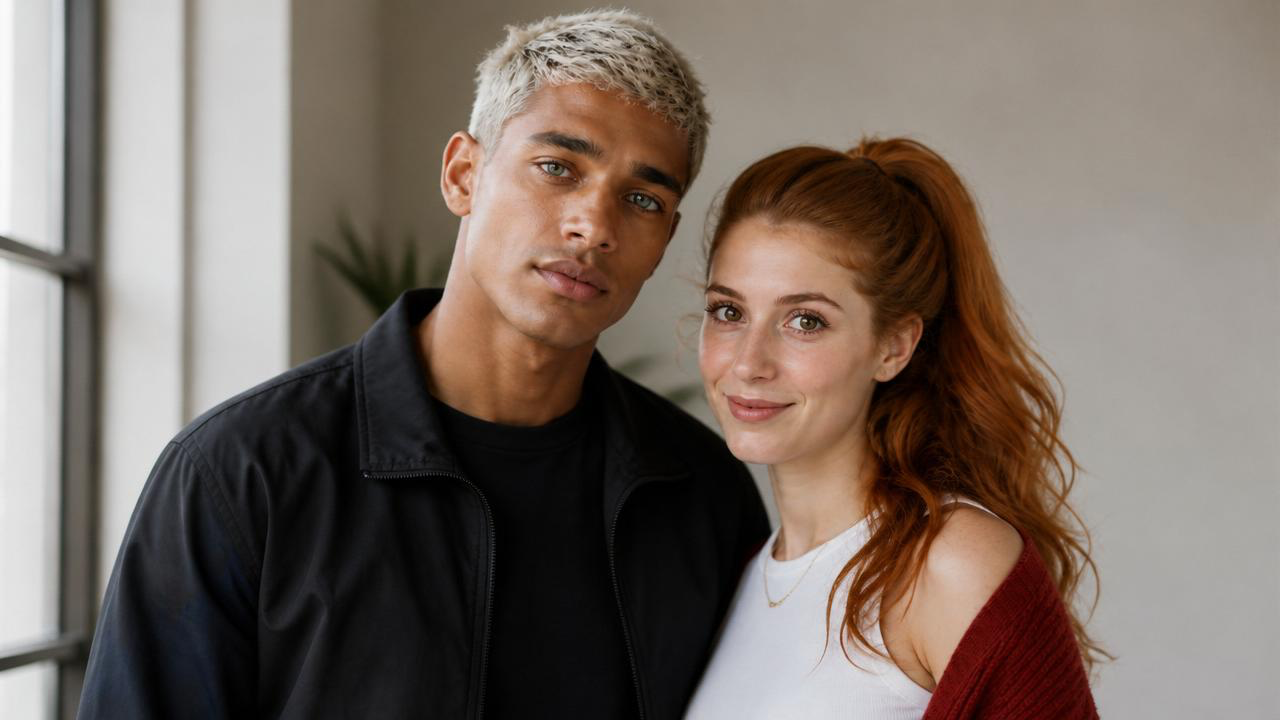
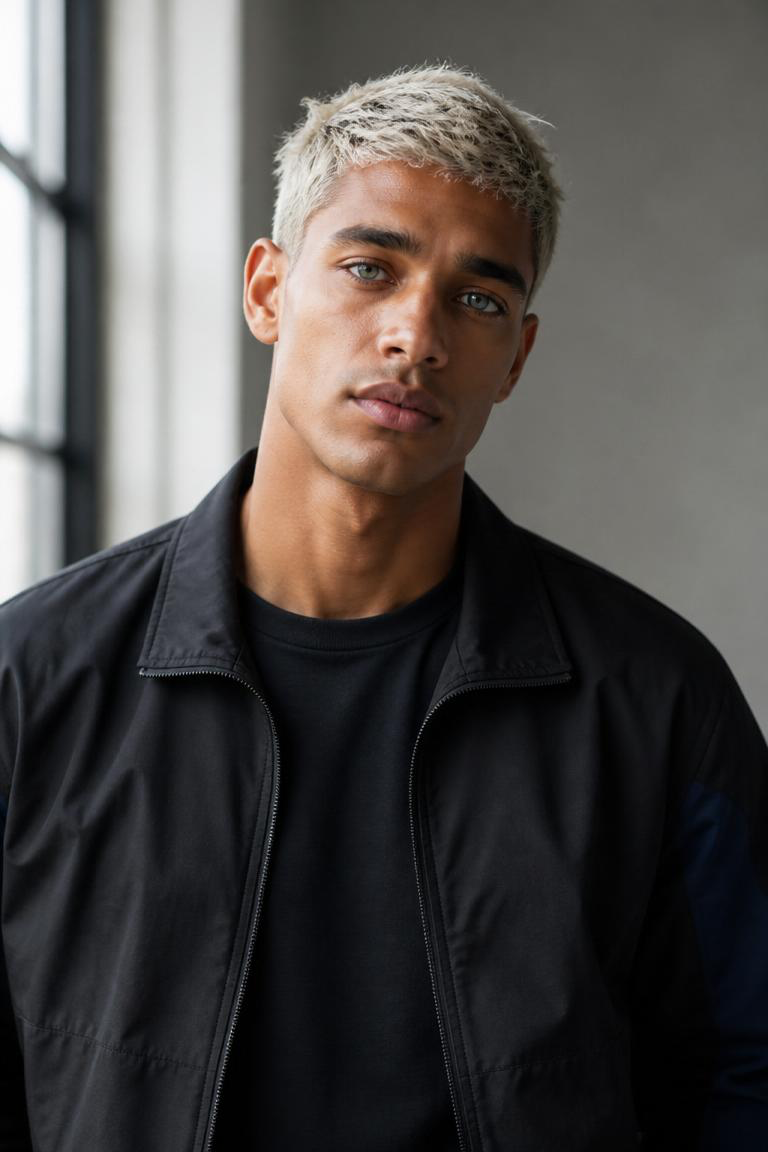
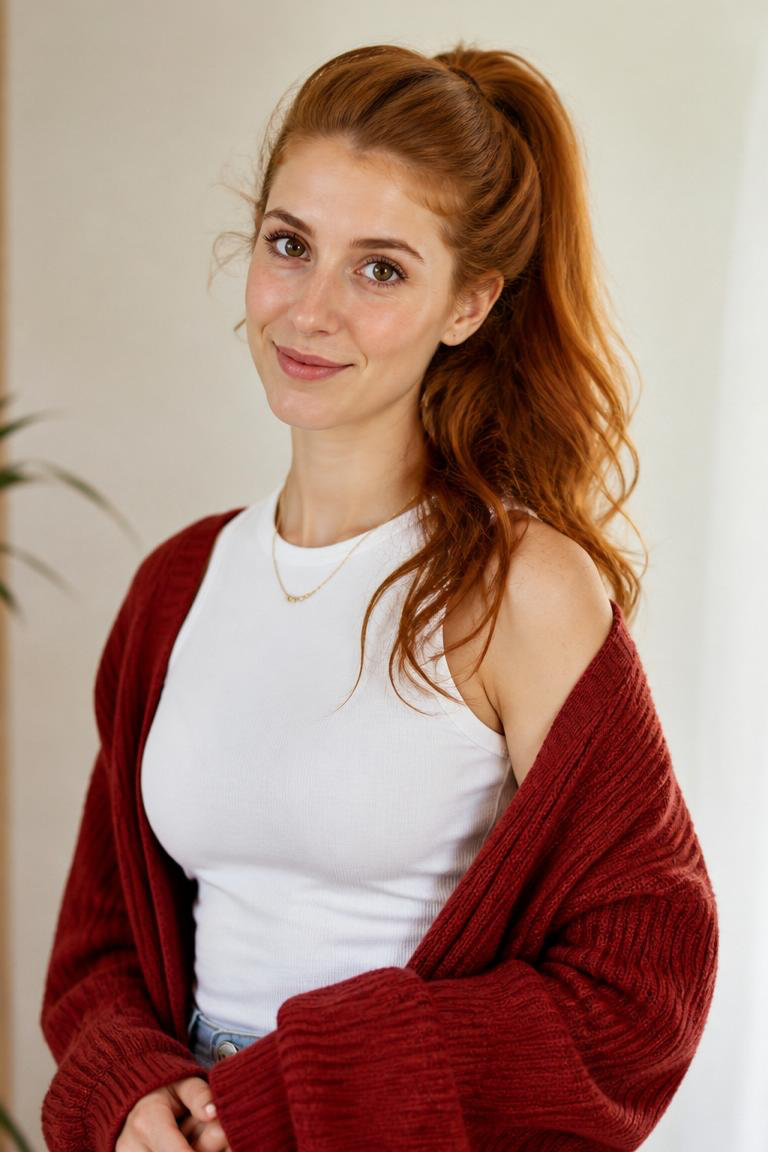
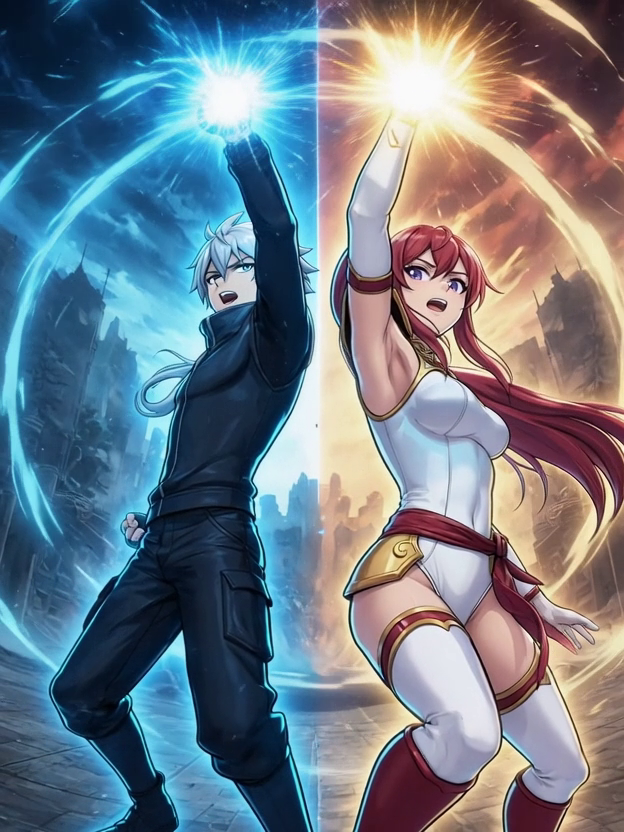 |
Step 1: Establish Your Art Style With the Agent
Step 1a: Upload your art style reference images to the canvas. Select/highlight them so they appear as references in the chat window.
Step 1b: Tell the Agent to review and confirm it understands the art style — but instruct it not to generate anything yet. For example:
"I've selected these reference images. Please review them and confirm you understand the art style I'm going for. Don't create anything yet — just confirm you understand the style."
Step 1c: Wait for the Agent to confirm. Once it does, you have a shared understanding of the target style that carries through the rest of the project.
Step 2: Lock In Your Character's Consistent Look
Step 2a: Upload your character reference images — these define the face, outfit, and physical appearance you want to keep consistent across all scenes. Select/highlight these on the canvas so they're attached as references.
Step 2b: Instruct the Agent to keep this character consistent — same face, same outfit, same physical appearance — but to alter only the poses for each anime key frame. For example:
"These are my character references. For all key frames and scenes going forward, keep this character's face, outfit, and physical appearance exactly consistent. Only change the pose and expression to match each scene."
Step 3: Generate and Approve Key Frames
This is where your scenes take shape — the Agent generates still key frames before animating anything.
Step 3a: Based on your scene outline from your Concept Brief, instruct the Agent to generate key frames for each scene. Each key frame represents a moment in your video.
Step 3b: Review all the key frames the Agent produces — including any that the Agent flags, marks with a thumbs down, or suggests discarding. You decide what stays and what gets revised, not the Agent.
Step 3c: Request revisions on any key frames that don't match your character or art style. Reference your original style images and character references to course-correct.
Step 3d: Once you're happy with all key frames, give the Agent the go-ahead to proceed to animation.
Step 4: Script Your Scenes and Animate
Now you turn your approved key frames into animated video clips.
Step 4a: Write a prompt for each key frame / scene describing what happens — the character's actions, movements, expressions, and dialogue. Scenes are generally 5 seconds long, though you can request 10 or 15 second clips.
Warning: Longer clips (10–15 seconds) can be hit or miss. The longer the clip, the more complex the generation, and results may vary. For best reliability, stick to 5-second segments and stitch them together in post.
Step 4b: If you want a character voice, this is the step where you add it. You can apply text-to-speech (TTS) at the same time you pass the key frame script to the Agent — include what the character says in each scene along with the scene action description.
Step 4c: The Agent will animate the mouth motion based on the dialogue, though the voice quality may not always be ideal on the first try (see Step 5 for voice tips).
Step 5: Voice — Getting It Right
Voice is the trickiest part of this workflow. Here are your options:
Option A — Text-to-Speech (in-platform): Include your character's dialogue in the scene script. The Agent will generate the voice and match mouth motion. Good for scripted content with a character voice.
Option B — Use your own voice clips (in-platform): Upload clean voice recordings alongside your key frame script. Name your voice files simply (e.g., scene1-dialogue.mp3, intro-line.wav) and reference those exact file names in your script when instructing the Agent.
Pro tip: If you don't reference the exact file names in your script, the Agent may not attach the audio properly — or may skip it entirely. Be explicit: "For Scene 1, use the audio file
scene1-dialogue.mp3for the character's voice."
Option C — Change your voice to a cartoon voice (experimental): You can ask the Agent to transform your uploaded voice clips into a different character voice. Take note of the new audio assets the Agent creates, and reference those new file names in subsequent scene scripts. However — this is new technology and results may vary. Experiment, but don't rely on it for a production workflow yet.
Option D — Bring Your Own Voice (recommended for voice changing): For reliable voice transformation, use ElevenLabs (elevenlabs.io) — a separate service at approximately $22/month. Use their voice changer tool to transform your recorded voice into your character voice, export the files, then upload them to Luma Agents as your voice assets for the scene scripts.
Understanding Credits and Video Length
Credits scale with the complexity and length of your project. Some important things to know:
- Every chat message with the Agent costs credits — not just generations. Plan your prompts carefully.
- Short test renders at lower complexity are the best way to preview before committing to final output.
- You can request longer videos (3–5 minutes), but be aware that even 10–30 seconds of complex animation can consume 3,000–5,000 credits depending on what's happening in the scene, the length, and the calculations the Agent needs to perform.
- Credit cost depends on: scene complexity, character detail, motion intensity, video length, and resolution.
- The Agent will choose the best model and approach for your generation — you don't need to specify which model to use.
Pro tip: Break longer projects into 5-second key frame segments. Approve each one before moving on. This gives you maximum control over quality and credit spend.
Recommended Plan
| Plan | Credits/mo | Best For |
|---|---|---|
| Trial | 3,000 (free) | Testing the concept — enough for a style test and a few key frames |
| Plus ($30/mo) | 10,000 | Getting started, single short-form videos |
| Pro ($90/mo) | 40,000 | Active creators producing weekly content |
| Ultra ($300/mo) | 150,000 | High-volume production workflows |
All paid plans include commercial rights — your content is clear for YouTube monetization.
Full pricing details: https://lumalabs.ai/pricing
Troubleshooting
My character looks different in every key frame?: Make sure your character reference images are selected/highlighted in the chat every time you request a new generation. Remind the Agent to maintain consistency with the same face, outfit, and physical appearance.
The Agent isn't using my voice files?: Check that your voice files have simple, clear names and that you reference those exact file names in your scene script. Generic instructions like "use my voice" won't work — be specific with file names.
My 15-second clip doesn't look right?: Longer clips are less reliable than shorter ones. Break the scene into 5-second segments and stitch them in your video editor for more consistent results.
I'm burning through credits too fast?: Remember that every chat message costs credits. Prepare your Concept Brief before starting, use clear and specific prompts, and avoid back-and-forth trial and error with the Agent. Plan first, execute second.
The art style isn't matching my references?: Go back to Step 1 — confirm the Agent understands your style before generating anything. Use multiple reference images rather than just one, and be descriptive about the exact look you want.
The voice sounds robotic or doesn't match?: Try uploading your own voice clips (Option B) instead of relying on TTS. For voice changing, consider using ElevenLabs' standalone voice changer ($22/mo) for more reliable results than the in-platform experimental option.
Frequently Asked Questions (FAQs)
1. Can I use this for commercial YouTube content? Yes — all paid Luma Agents plans (Plus, Pro, Ultra) include commercial use rights. Your transformed videos are yours to monetize.
2. Does this work with any art style, or only anime? Any style. Cartoon, anime, watercolor, comic book, pixel art, claymation — as long as you provide clear reference images and describe the style to the Agent.
3. How long can my final video be? You can create videos of 3–5 minutes or longer, but credit costs scale with complexity and length. A complex 10–30 second scene can use 3,000–5,000 credits. Plan your budget accordingly and build in segments.
4. Do I need to choose which AI model to use? No. The Luma Agent will select the best model and approach for your generation automatically. Just focus on your creative direction and let the Agent handle the technical decisions.
5. Can I do all of this on the free trial? The free trial (3,000 credits) is enough to test the concept — establish your art style, generate a few key frames, and see a short animated clip. For a full production, you'll need a paid plan.
6. What should my Concept Brief include? At minimum: art style references, character reference images, source video, a scene-by-scene outline, and any voice files. The more organized your brief, the fewer credits you'll spend on revisions and clarifications with the Agent.
Related Articles
- Character Consistency Guide: https://lumaai-help.freshdesk.com/en/support/solutions/articles/151000220904
- How Do I Animate Puppets Using Just My Hand?: https://lumaai-help.freshdesk.com/en/support/solutions/articles/151000226500
- Learning Center (Luma Agents): https://lumalabs.ai/learning-center
Original Author: Chris Roebuck Original Creation Date: April 2026 Updated by: CR
Was this article helpful?
That’s Great!
Thank you for your feedback
Sorry! We couldn't be helpful
Thank you for your feedback
Feedback sent
We appreciate your effort and will try to fix the article