Method 2: invite team mates to your entire workspace
Please follow the steps below to invite another team member to your workspace. This means that all boards available on the account will be visible for the invited team mate.
1. Ensure all collaborators already have a Luma app account (trial accounts are accepted).
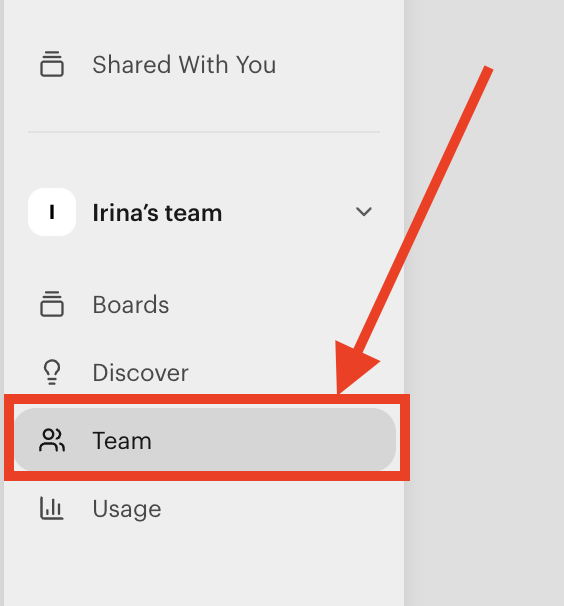
2. In your account settings go to the Team tab > Invite

3. Add your email address in the box and set the permission to either Member or Admin.
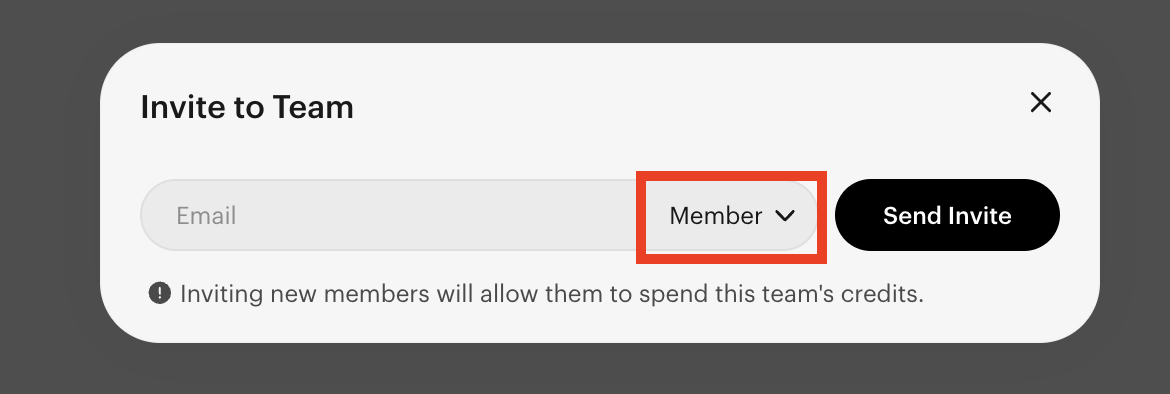
Please be aware that providing Admin to an external account means they will have full control over your workspace and credits. Proceed with caution.
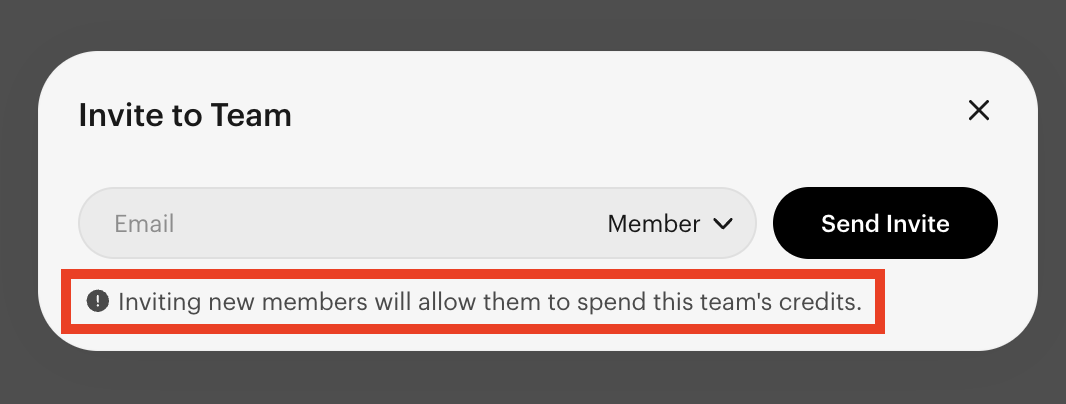
Please note that all invited users will utilise the credits from the main account that sent the invitation.
Was this article helpful?
That’s Great!
Thank you for your feedback
Sorry! We couldn't be helpful
Thank you for your feedback
Feedback sent
We appreciate your effort and will try to fix the article