Category:Advanced Features
Tags:Style Reference, Ray2, art style, visual aesthetic, REFRAME, composition matching, animation styling, EDITOR
Introduction
Style Reference lets you apply the visual aesthetic of any reference image to your video content, creating animated sequences that maintain specific artistic styles. This Ray2 feature is perfect for matching brand aesthetics, artistic styles, or specific visual moods while adding natural movement and animation. Whether you want to transform live-action footage into line drawings, apply painterly effects, or match specific brand visual styles, Style Reference gives you precise control over the artistic appearance of your animated content.
Complete Style Reference Workflow
Step 1: Upload Your Source Video

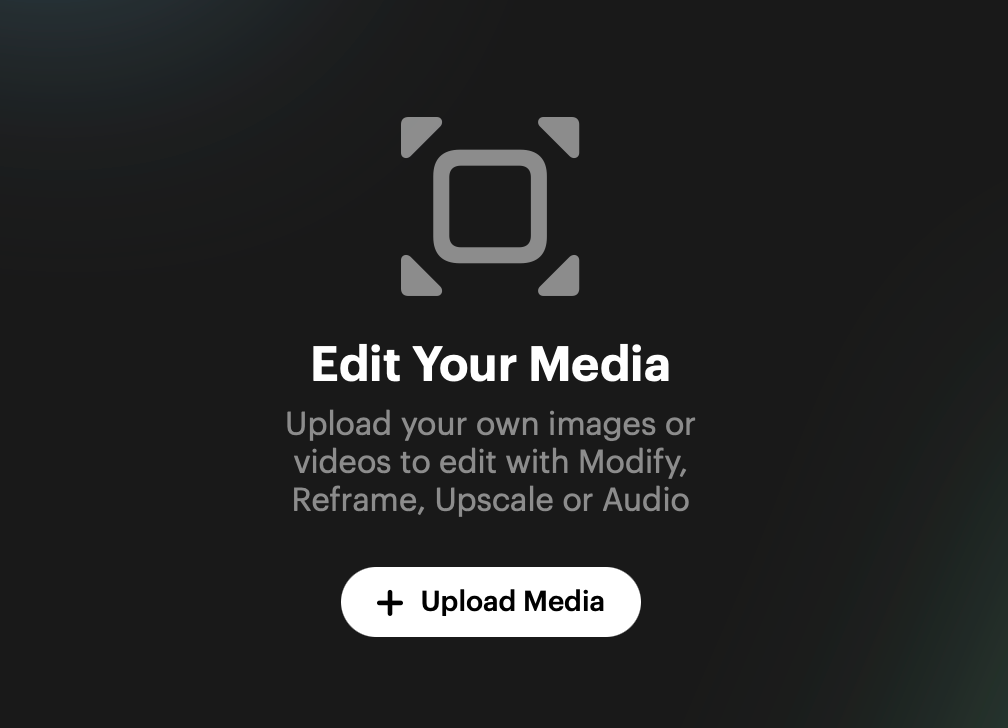
Navigate to EDITOR (bottom sidebar) and click "Upload Media" to add your source video. This is the video whose motion you want to preserve while applying a new visual style.
Step 2: Ensure Composition Matching
Ensure your video framing matches your reference image composition exactly. This is crucial for success—if your style reference shows a close-up portrait, your source video should also feature a close-up portrait at a similar scale and framing.
Step 3: Use REFRAME for Aspect Ratio Alignment
Use REFRAME if aspect ratios don't match between your reference and video. If your style reference is 1:1 (square) but your video is 16:9 (widescreen), either expand the reference image or reframe your video to match dimensions before processing. Aspect ratio alignment is critical for proper style application.
Step 4: Enter Modification Interface
Click "MODIFY" to enter the modification interface where you'll apply your style reference.
Step 5: Select Your Start Frame
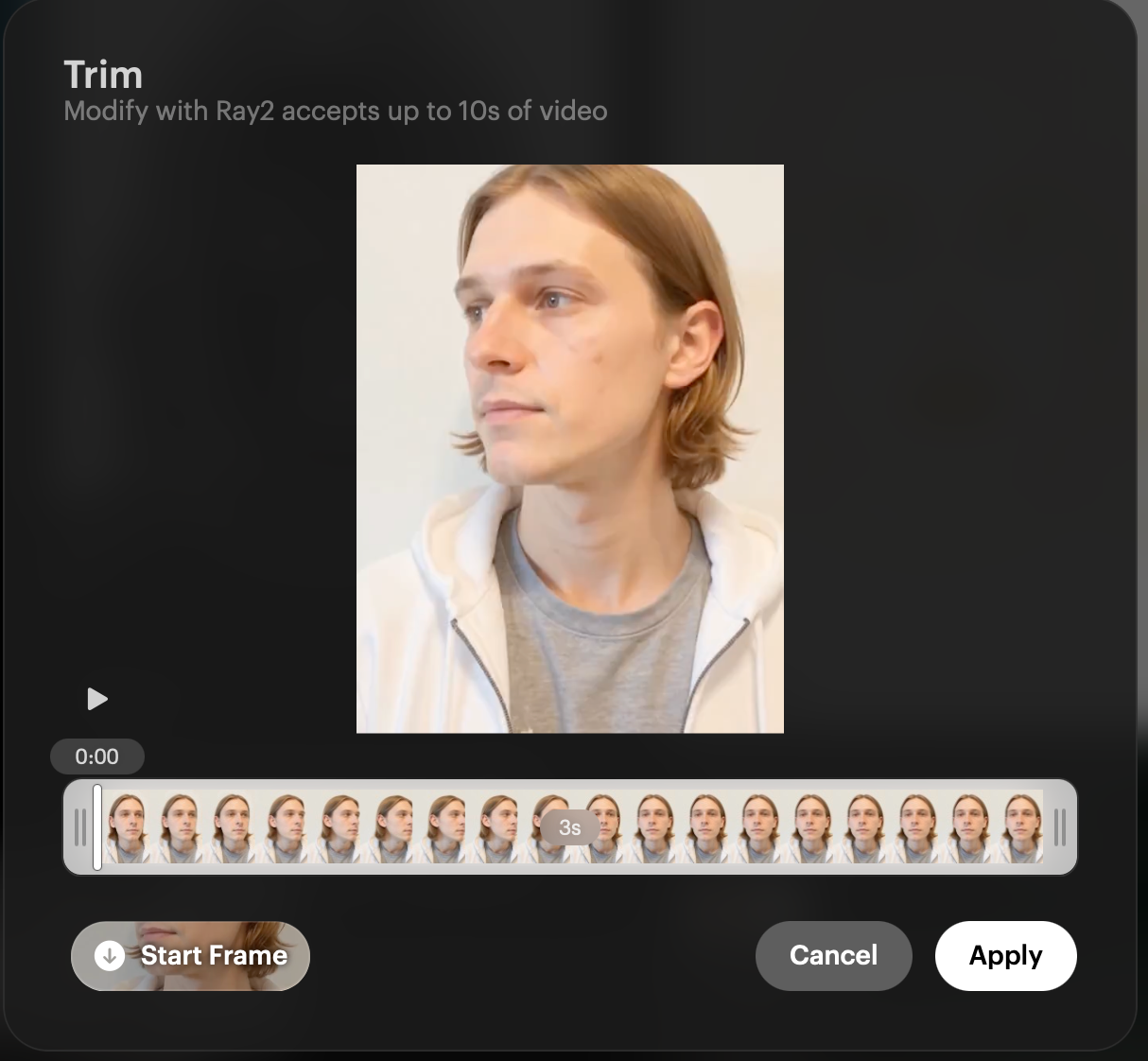
In the Trim screen, select your desired "Start Frame" from the timeline. This determines which frame of your video will be used as the starting point for style application.
Step 6: Upload Your Style Reference Image
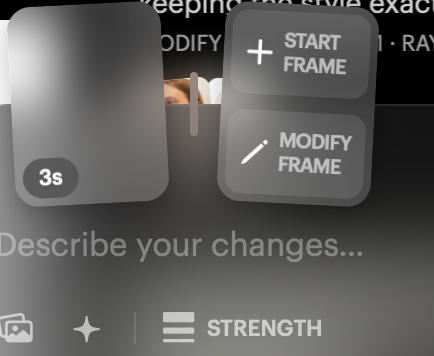
Click the "Start Frame" button and upload your style reference image. This image defines the visual aesthetic that will be applied to your video.
Step 7: Set Strength to Maximum
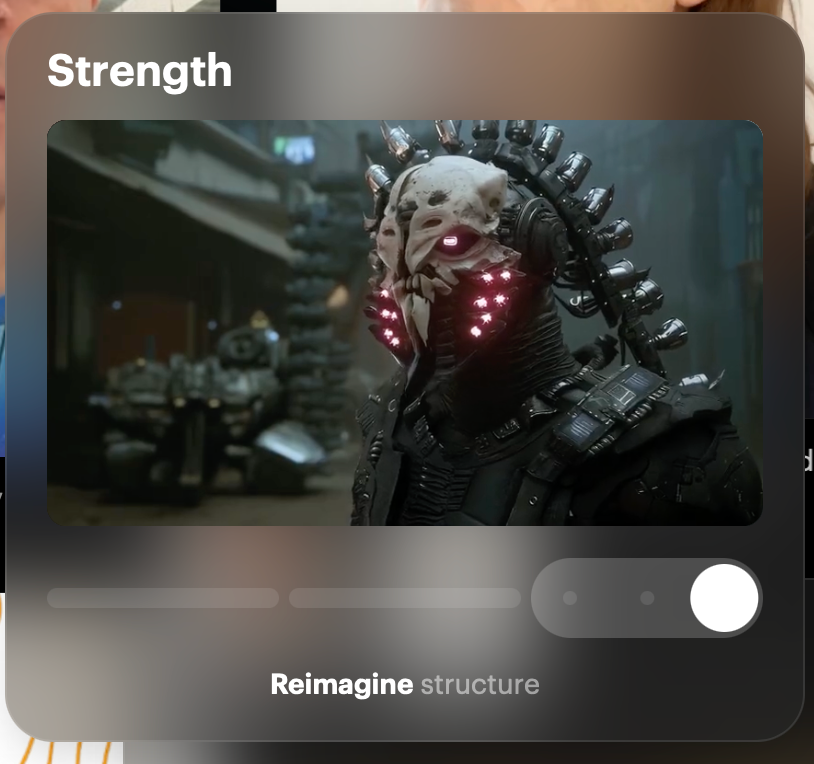
Navigate to STRENGTH settings and move the slider to maximum ("ReImagine Structure"). This setting ensures the strongest style transfer from your reference image to your video content.
Step 8: Write Your Movement Prompt
In the prompt field, add your movement description BEFORE the original reference prompt structure:
"animated face looks side to side, [original image prompt here]"
For optimal results, obtain the original prompt that created your reference image (or ask ChatGPT to describe the image and suggest a likely prompt), then add your movement description at the beginning.
Step 9: Generate and Iterate
Generate your styled animation. Professional results often require multiple attempts—the AI is making educated guesses, so patience and iteration are key to excellent results. Filmmakers do multiple takes, and AI generation works the same way.
Example Setup
Scenario:Converting a 16:9 portrait video to match a 3:4 style reference of a line drawing portrait
Steps:
Use REFRAME to convert video from 16:9 to 3:4 aspect ratio
Upload the line drawing portrait as style reference
Set Strength to "ReImagine Structure" (maximum)
Use prompt: "animated face looks side to side, matching exactly to the art style, simple line drawing portrait of person with wavy hair"
PRO TIP: Composition Matching Is Crucial
Composition matching is crucial for success. If your style reference shows a close-up portrait, your source video should also feature a close-up portrait. Use REFRAME to adjust aspect ratios—if your style reference is 1:1 but your video is 16:9, either expand the reference image or reframe your video to match dimensions before processing. Mismatched compositions will produce poor or unpredictable results.
Style Reference Best Practices
Match Composition Elements
Close-up portrait reference → Close-up portrait video
Wide landscape reference → Wide landscape video
Medium shot reference → Medium shot video
Object-focused reference → Object-focused video
Align Aspect Ratios Before Processing
Use REFRAME to ensure perfect dimensional matching:
Square reference (1:1) requires square video (1:1)
Vertical reference (9:16) requires vertical video (9:16)
Widescreen reference (16:9) requires widescreen video (16:9)
Structure Your Prompts Effectively
Always place movement description first, followed by style description:
"[movement description], [style characteristics from reference]"
Example: "person turns head slowly and smiles, watercolor painting style with soft brush strokes and pastel colors"
Use ReImagine Structure Strength
For strongest style transfer, always set Strength to maximum ("ReImagine Structure"). Lower strength settings may not apply the style aesthetic strongly enough.
Important Compatibility Note
Style Reference works exclusively in Ray2 through the EDITOR section. This feature is not available for Ray3 or Ray1.6. All style reference workflows must use Ray2's processing pipeline.
Troubleshooting
What happens if my style doesn't transfer properly to the video?:The most common cause is composition mismatch between your reference image and source video. Verify that framing, scale, and subject positioning match closely. Also check that aspect ratios are aligned—use REFRAME to match dimensions exactly before processing.
Why does my styled video look distorted or incorrect?:Ensure your Strength setting is at maximum ("ReImagine Structure"). Lower strength may produce weak or inconsistent style application. Also verify your prompt includes both movement description AND style characteristics from the reference image.
My aspect ratios match but results still look wrong...:Beyond aspect ratio, composition elements must align. If your reference is a centered close-up portrait and your video shows an off-center medium shot, style transfer will be poor. Reframe or re-shoot your source video to match the reference composition more precisely.
How do I get the "original prompt" for my reference image?:If you created the reference image yourself in Dream Machine, retrieve that original prompt. If using an external image, ask an AI like ChatGPT to describe the image in detail and suggest what prompt might have created it, then use that description as your style guidance.
Can I use Style Reference with Ray3 videos?:No, Style Reference works exclusively with Ray2. If you have a Ray3 video, you would need to recreate similar content in Ray2 to use Style Reference, or use Ray2's Modify Video features instead of Style Reference.
Frequently Asked Questions (FAQs)
1. What is Style Reference and how does it differ from regular video generation?Style Reference applies the visual aesthetic and artistic style of a reference image to your source video while preserving the video's original motion and composition. Unlike generating video from scratch, Style Reference transforms existing footage to match a specific visual style—turning live action into line drawings, paintings, or any artistic aesthetic.
2. Why is composition matching so important for Style Reference?Style Reference works by aligning visual elements between your reference image and source video. If compositions don't match (close-up vs wide shot, centered vs off-center), the AI cannot effectively map the style from reference to video. Matching composition ensures the style transfers accurately to corresponding elements.
3. Can I use any image as a style reference?Yes, but images with clear, distinct artistic styles work best—line drawings, paintings, specific illustration styles, branded visual aesthetics. Generic photographs may not provide enough distinctive style characteristics to create dramatic transformations. The more unique and identifiable the visual style, the better the results.
4. What does "ReImagine Structure" strength setting do?"ReImagine Structure" is the maximum strength setting that applies the strongest possible style transfer from your reference image to your video. This setting reimagines your video's visual structure to match the reference aesthetic while maintaining motion and composition.
5. How many attempts does it typically take to get good Style Reference results?Professional results often require 3-5+ iterations. Like filmmakers doing multiple takes, AI generation benefits from experimentation. Try different prompt phrasings, adjust timing descriptions, or refine your reference image choice. Patience and iteration are key to achieving your vision with Style Reference.
Related Articles
Original Author:Chris Roebuck, Luma AI – Customer Support - Education
Original Creation Date:Friday, September 19, 2025 at 12:37 PM
Updated by:KB Conversion Team
Was this article helpful?
That’s Great!
Thank you for your feedback
Sorry! We couldn't be helpful
Thank you for your feedback
Feedback sent
We appreciate your effort and will try to fix the article