Category: Advanced Features Tags: Modify Video, motion preservation, video transformation, Ray2, Ray3, Ray3.14, Modify Frame, Character Reference, Keyframes, Adhere strength, environment change, background swap, styling transformation Introduction
Modify Video allows you to transform any footage—live action, animation, or phone recordings—into completely different worlds while preserving the original motion, performance, and camera dynamics. This breakthrough tool works without green screens or special equipment, maintaining authentic movement while changing everything else. You can transform environments, swap backgrounds, update wardrobe and styling, replace characters, change atmospheric conditions, or make multiple modifications while keeping facial expressions, lip sync, choreography, and camera movement intact.
Modify Video is available across multiple models:
- Ray2 / Ray2 Flash — The original Modify Video pipeline. Reliable for standard transformations, up to 10-second uploads with output up to 30 seconds via Extend. Supports Relaxed Mode.
- Ray3 Modify — Drastically improved motion preservation, physical logic, and narrative coherence. Adds Character Reference and Start/End Frame Keyframe controls for the first time in a video-to-video workflow.
- Ray3.14 Modify — The latest update with native 1080p generation, 4x faster performance, improved stability, stronger prompt adherence, and improved motion consistency for Modify Video.
Available with all paid Dream Machine subscriptions on web and iOS.
Complete Modify Video - Video-To-Video - Workflow
EXAMPLE: Making a regular Video into a Tropical Video
V2V / Video To Video Modify:
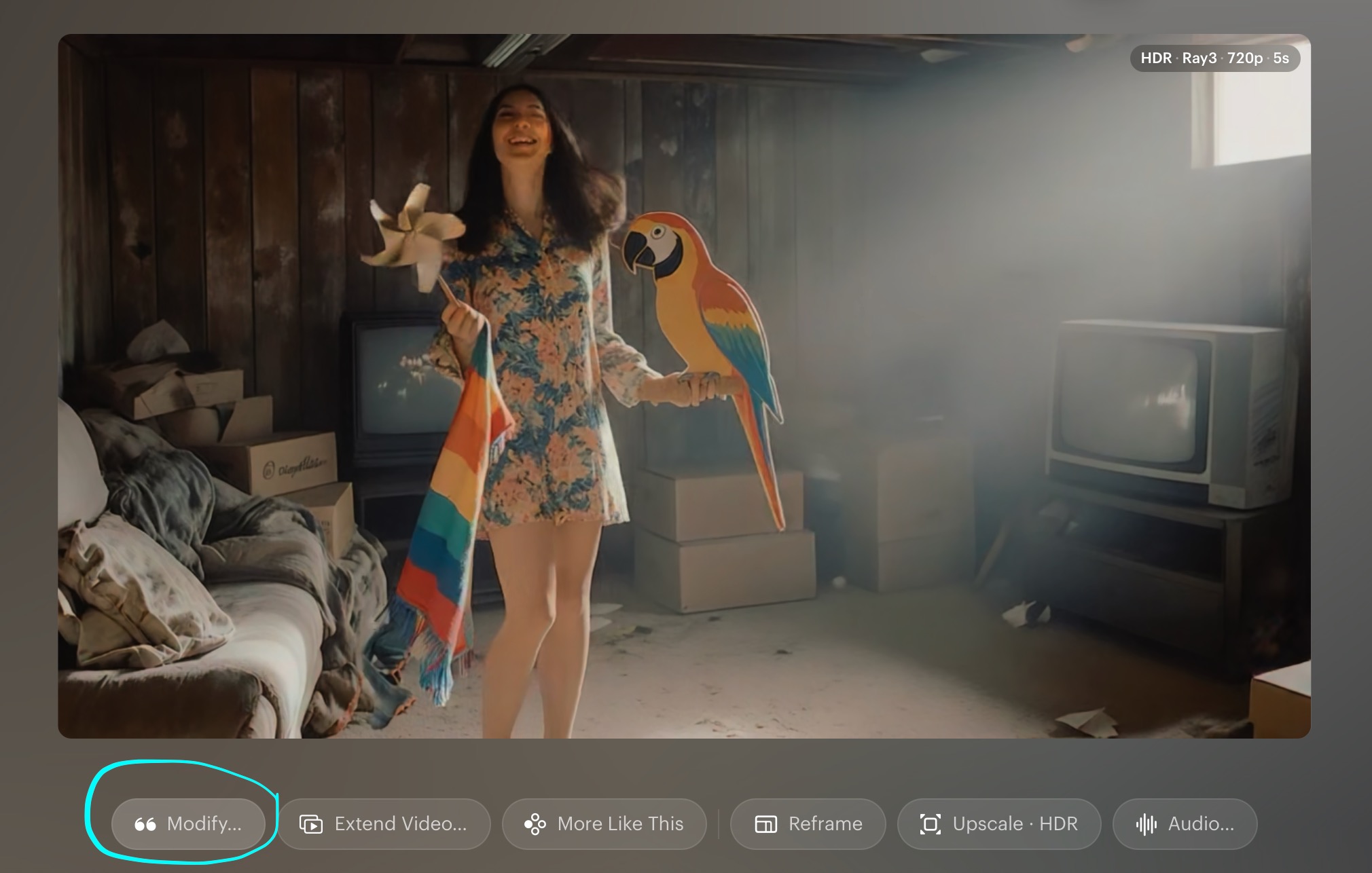
Step 1: Access Modify Video - Open your completed video in Dream Machine using the EDITOR. After the video has been uploaded, select the video, then at the bottom left click the "MODIFY..." option to enter the transformation interface.
Step 2: Choose Your Modification Type
The newer way to update the video is to First use MODIFY V2, to Modify the FIRST FRAME.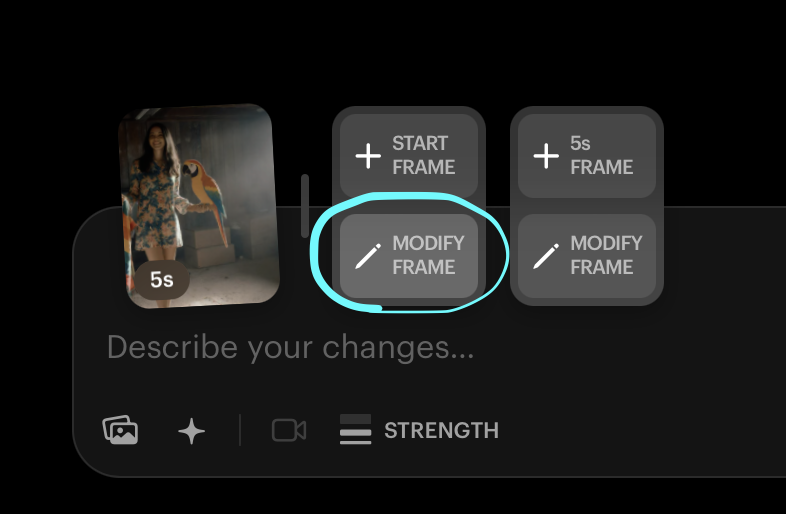 In the Interface choose "Modify Frame".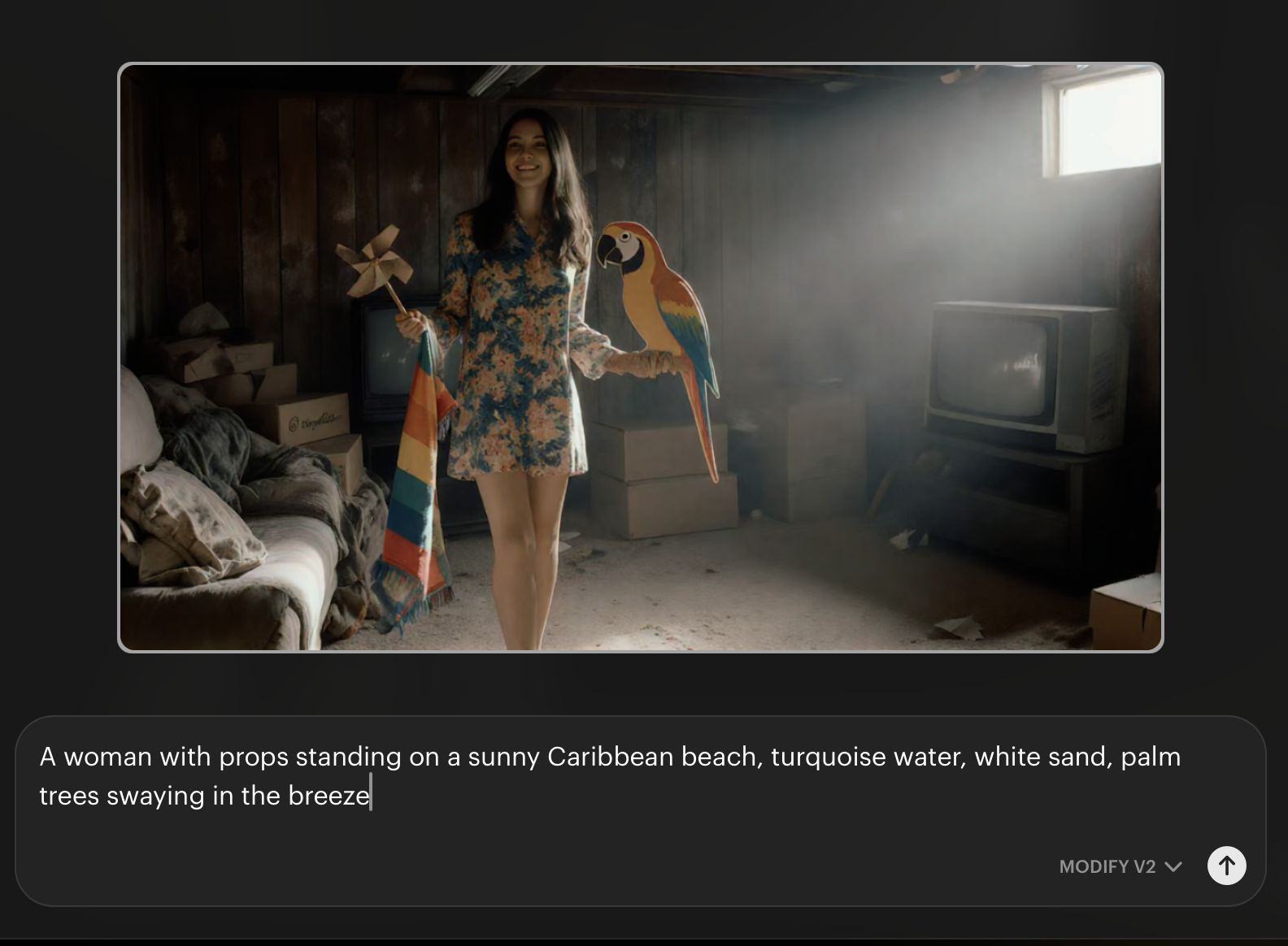
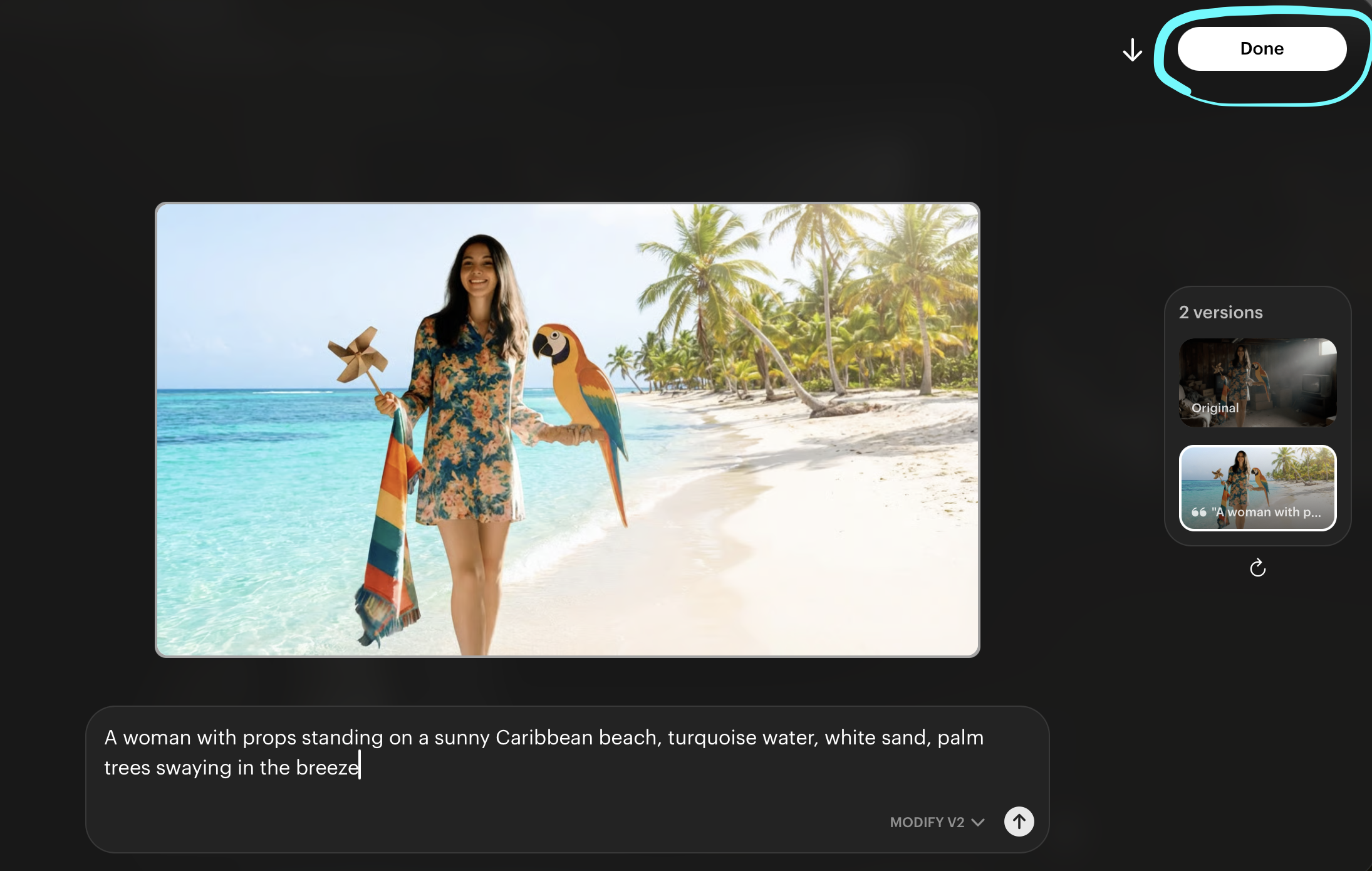
You can try various Prompts to alter the FIRST FRAME. Once you have a First Frame you are happy with, select DONE.
Then Generate the New Modified Video.
With Ray3 Modify, you also have access to:
- Modify with Keyframes — Set Start and/or End Frames to guide transitions and maintain spatial continuity.
- Character Reference — Upload a reference image to replace the character in your video while preserving the original performance.
- Modify with Instructions — Describe complex multi-step changes in plain English.
Step 3: Set Your Strength Locate the "Strength" slider in the modification interface. Experiment with the strength levels:
- Adhere (lowest) — Preserves motion, performance, and camera dynamics while allowing visual transformations. Best for background swaps, relighting, and retexturing where you want to keep the subject intact.
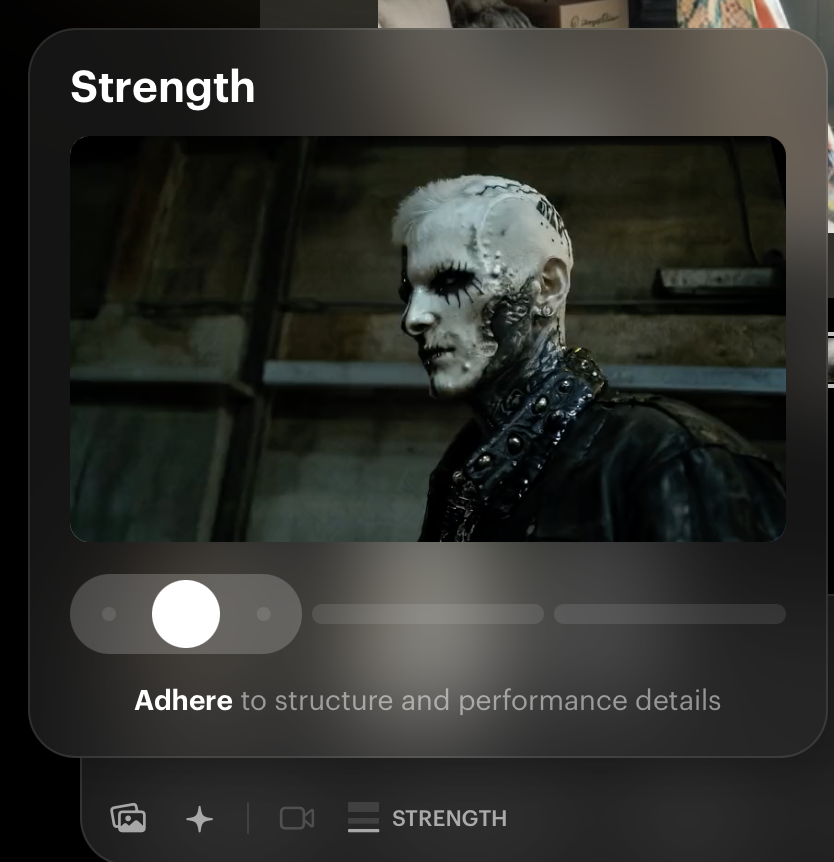
- Flex (middle) — Balances creativity with recognition. Good for significant style changes while keeping core elements identifiable.
- Reimagine (highest) — Maximum creative freedom for dramatic transformations. Loosens alignment to allow stylized, abstract, or non-human character transformations. Note: Higher settings can reduce how much camera motion is preserved.
Step 4: Describe Your Changes in Your Prompt Write clear, specific prompts describing what you want to transform: For environment changes: "Transform the indoor scene to a magical forest, preserve all character movement" For styling updates: "Change the modern clothing to medieval costume, maintain all performances" For atmospheric changes: "Change sunny day to stormy night, keep all motion intact" For background swaps: "Keep the person identical, replace the background with a sunny Caribbean beach with turquoise water, white sand, and palm trees"
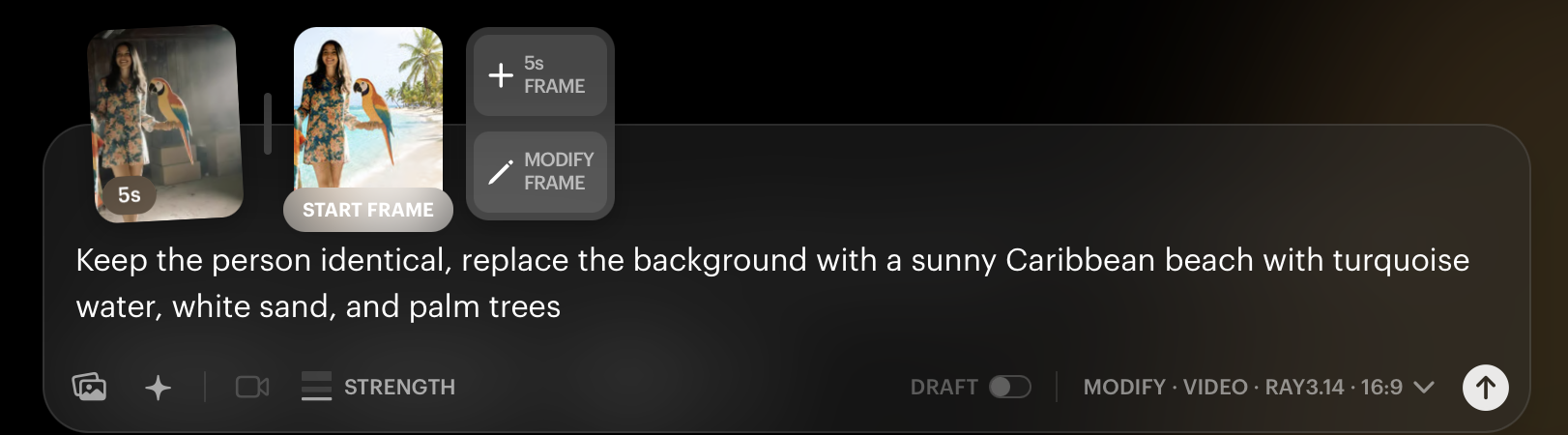
Step 5: Generate Your Transformed Video Review your settings: Modify type selected, Strength level chosen, clear transformation prompt. Click generate and wait for processing (typically 2–4 minutes). The AI will transform your footage while maintaining original motion and performance. Once complete, review the result and download if satisfied, or adjust your prompt and regenerate for refinements.
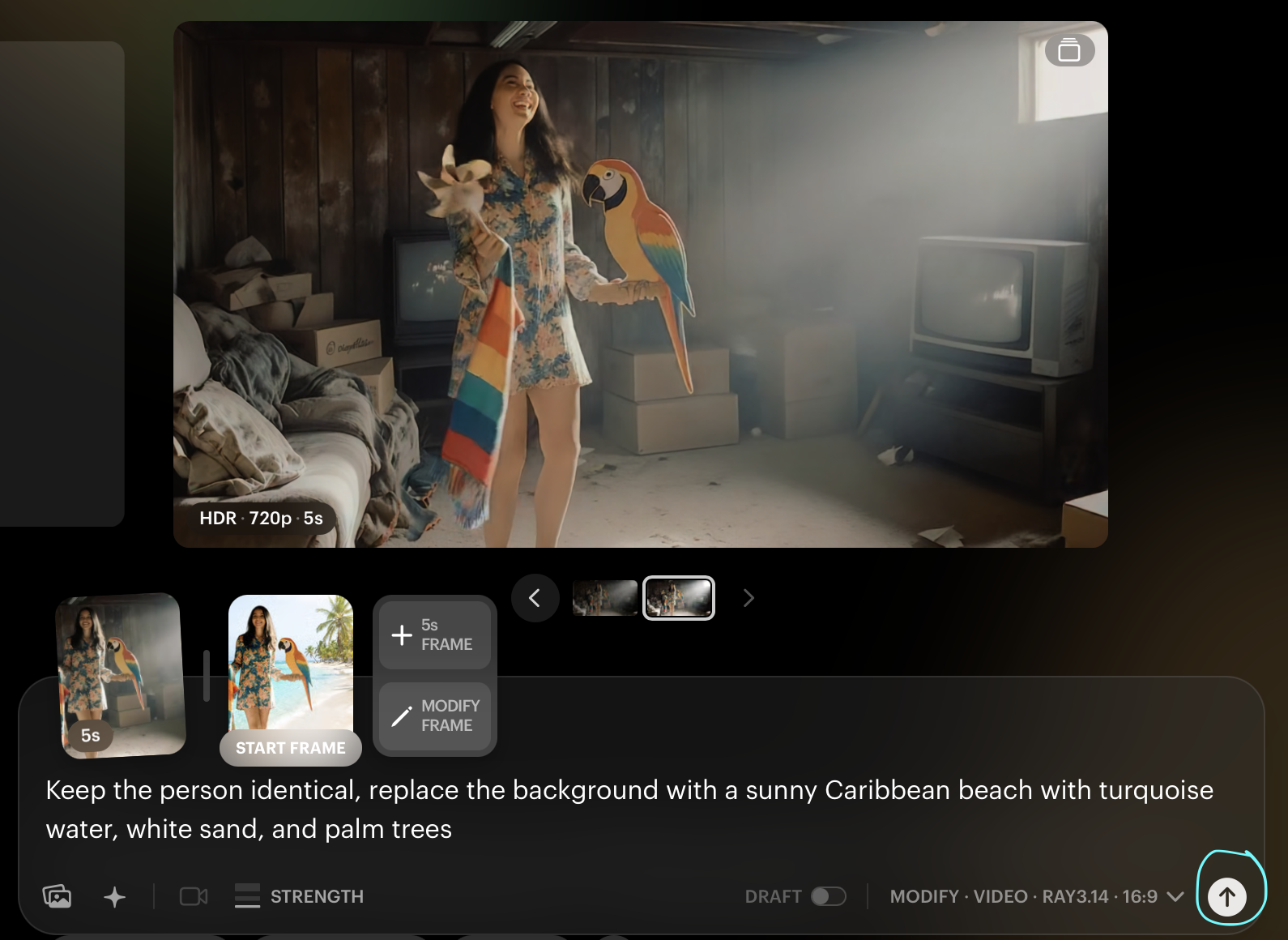
How to Swap a Background While Keeping Your Subject
One of the most common uses for Modify Video is replacing a background while preserving the person, their motion, and any props in the scene. Here is the recommended workflow:
What You Need:
- Your video clip (up to 10 seconds) with the subject you want to keep
- Optionally, a reference image of the background/environment you want (e.g., a Caribbean beach photo)
Step-by-Step:
- Upload your video clip in the Modify interface.
- If you have a reference image of your desired background, upload it as a style/visual reference. This gives the AI a strong visual target for the new environment.
- Set the Strength slider to Adhere (the lowest setting). This is crucial — it ensures the AI preserves your subject, their motion, and props while focusing changes on the environment.
- Write a prompt that clearly describes what should stay and what should change. Use positive descriptions:
- ✅ "A woman with props standing on a sunny Caribbean beach, turquoise water, white sand, palm trees swaying in the breeze"
- ❌ "Remove the old background" (avoid negative instructions)
- For extra precision, you can add reinforcing language: "keep the person's appearance and movement identical, only transform the background"
- Click generate and review.
Tips for Best Results:
- Filming against a clean, minimal background (blank wall, greenscreen, or cyclorama) gives better subject separation — but it is not required. Luma handles foreground/background separation well on its own.
- A background or environment image can also be used as a Character Reference to anchor the scene.
- If the result changes your subject too much, make sure Strength is at Adhere and that your prompt emphasizes preserving the subject.
- If the background change is too subtle, try slightly increasing the Strength slider toward Flex while monitoring that the subject stays intact, or make your environment description more specific and vivid.
- For professional footage, convert your source video to H264/H265 with CRF below 17 for the cleanest input.
Ray3 Modify: Character Reference
Ray3 Modify introduces a powerful new Character Reference capability that lets you replace the character in your video with a completely different character — while everything else in the video remains unchanged. Your character reference will automatically adapt to the visual or artistic style and lighting of your input video.
This is essential for actor-led projects where you want to swap a real performance onto a different character (human, creature, animated, etc.) while preserving the original motion, facial expressions, lip sync, and emotional delivery.
How-to Steps:
- Upload your input video (max 10s) and drop an image of your character reference image.
- Adjust your Modify strength and hit .
Advanced: Input Video + Keyframes + Character Reference This is the highest level of control with Ray3 Modify. It enables you to upload an input video, modify the start and/or end frames, AND upload a character reference image to control the character.
- In Modify mode, upload your input video (max 10s) and your character reference image.
- Click on either keyframe card to open the Modify Frame editor and check the "use character" box.
- Write your instructions and submit to modify that keyframe. Do the same with your next keyframe.
- Adjust your Modify strength and submit to create.
Tips:
- When modifying keyframes, the character reference image can be referred to as "image1" or "cref," and the target keyframe image can be referred to as "image2" or "original image."
- Example prompt: "Replace the character in image2 with the cat in image1, make the background the living room from image1, make the cat doing the same exact pose as the character in image2"
- The End Frame is the 5-second frame — if your input video is longer than 5s, it pulls the image at the 0:05 mark. The transformation still applies to the entire video.
- For even better outputs with Character Reference, try generating at 1080p resolution.
Ray3 Modify: Keyframes (Start & End Frames)
Ray3 Modify introduces Start and End Frame control to the video-to-video workflow for the first time. This allows you to guide transitions, control character behavior, and maintain spatial continuity across longer camera movement passes, reveals, and complex scene blocking.
How-to Steps:
- In Keyframes mode, upload your keyframe(s) and optionally a character reference.
- Enter your written instructions and submit to create.
Use Cases:
- Magic Transitions — Guide a transformation from one state to another across the clip
- Virtual Crowds — Populate a scene with additional characters
- Editing Reality — Alter physical elements of a scene mid-shot
- Doorway Thresholds — Create transitions between entirely different environments within a single camera move
Reference Video Mode + Character Reference
You can also use video in Reference mode with a character reference card. This lets you create text-to-video content while keeping a consistent character identity anchored to your reference image.
How-to Steps:
- In Reference mode settings, select the Video tab.
- Upload your character reference image.
- Write your instructions and submit to create.
Real Transformation Examples
Environment Transformation Original: Person dancing in a living room Prompt: "Transform the living room into a futuristic space station, preserve all dance movements" Result: Same choreography and performance in a completely new sci-fi environment
Background Swap Original: Person with props filmed against a plain wall Prompt: "A woman with props on a sunny Caribbean beach, turquoise water, white sand, palm trees" Result: Subject and props preserved identically, background replaced with beach scene
Character Styling Original: Casual conversation between two people Prompt: "Transform modern clothes into 1920s period costumes, maintain all gestures and expressions" Result: Period-accurate styling with preserved natural conversation dynamics
Atmospheric Changes Original: Outdoor scene in daylight Prompt: "Change to nighttime with neon city lights, keep all character movements" Result: Dramatic lighting transformation with maintained motion fidelity
Character Swap (Ray3 Modify) Original: Actor performing a scene in a studio Character Reference: Image of an animated character Result: Animated character performs the exact same scene — same motion, expressions, and timing — in the studio environment
Wardrobe Swap Original: Person walking in casual clothing Prompt: "Change outfit to a formal evening gown, preserve all movement" Result: Updated wardrobe with identical motion and body language
About the Modify Strength Control Slider
The Modify Strength slider determines how closely the system follows your input video:
- Adhere (left/lowest) — Keeps the model tightly aligned to the original shape edges and details. Ideal for subtle changes like retexturing, relighting, recoloring, or background swaps where you want to preserve the subject exactly.
- Flex (middle) — Balances creativity with recognition. Significant style changes while keeping core elements identifiable. Sweet spot for most transformations.
- Reimagine (right/highest) — Loosens alignment, allowing stylized, abstract, or non-human character transformations. The system blurs edges and shapes to become more flexible with character shape and expression. Background elements also become less rigidly defined, giving more imaginative control over the environment. Useful for "puppeteering" non-human creatures or unusual shapes far from the human form.
Camera Note: Higher Modify Strength settings can reduce how much camera motion is preserved from your input video. At the highest Reimagine settings, the system may infer camera movement based on the subject's pose, which can create zooms or shifts that reinterpret the original shot.
Advanced Features
Motion Preservation Maintains facial expressions, lip sync, choreography, and camera movement regardless of environmental changes. Ray3 Modify takes this further with improved physical logic, narrative coherence, and performance authenticity — scenes transform in ways that respect the human-led input footage.
No Equipment Required Works with phone footage, professional shoots, or any existing video content. You don't need green screens, special lighting, or professional equipment to achieve dramatic transformations. That said, filming against a clean background does help with subject separation for the best results.
Flexible Duration Upload up to 10 seconds of footage. Output can extend to 30 seconds using Extend (Ray2) or standard extension workflows.
Multiple Approaches
- Modify Video — Standard visual transformations (environment, wardrobe, lighting, atmosphere)
- Modify Frame — Precise control for targeting specific visual elements
- Modify with Instructions — Complex multi-step changes described in plain English
- Character Reference (Ray3) — Replace characters while preserving performance
- Keyframes (Ray3) — Start and End Frame control for guided transitions
PRO TIPS
- Use Modify Start Frame with Adhere Strength for precise control. This combination preserves your original video's motion fidelity while transforming environments, wardrobe, or styling.
- For background swaps, always start at Adhere and only increase if the change is too subtle.
- Use a reference image of your target environment for stronger, more accurate background replacements.
- You can use external tools like Photoshop to prep your first frame before bringing it into Dream Machine — edit the background in the still frame, then use that as your starting point in Modify Video for more controlled results.
- For professional footage workflows, Rec.709 works fine as input — convert to H264/H265 with CRF below 17for cleanest results. All input is processed at 8-bit RGB internally.
- Rotoscoping is unnecessary — Luma handles foreground/background separation well.
- For complex edits requiring multiple changes, use Modify with Instructions to describe all modifications simultaneously.
Troubleshooting
What happens if my motion changes or looks distorted after modification? Your Strength setting is likely too high. Move the Strength slider to "Adhere" (the lowest setting) to maximize motion preservation. Also ensure your prompt includes phrases like "preserve all movement" or "maintain all performances" to reinforce the instruction.
My background swap changed my subject too — how do I fix this? Make sure Strength is set to Adhere. Write your prompt to emphasize what should stay the same: "keep the person's appearance and movement identical, only transform the background to [your description]." Using a reference image of your target background also helps the AI understand the boundary between subject and environment.
Why does my Ray3 video look different after modification? If you are using Ray2 Modify on a Ray3-generated video, the video is adapted to Ray2's processing pipeline, which may result in some quality or style differences. For projects requiring extensive modification, consider generating the base video with Ray2, or use Ray3 Modify which processes natively.
My transformation is too subtle or didn't change enough. If Adhere strength preserves too much of the original, try slightly increasing the Strength slider toward Flex while monitoring that motion stays intact. Make your prompt more specific and descriptive: instead of "change the room," use "transform the bedroom into a vibrant tropical jungle with lush green plants, hanging vines, and waterfalls."
Can I modify only part of my video? Modify Video transforms the entire video uniformly. For selective modifications (like changing only the background while preserving the foreground), use very specific prompts that describe what should stay the same: "keep the person's appearance identical, only transform the background to a snowy mountain landscape." For element-level precision, try Modify Frame or Modify with Instructions.
My video has complex motion — will Modify Video handle it? Modify Video excels at preserving complex motion including facial expressions, lip sync, choreography, and camera movement. However, extremely fast or chaotic motion (fight sequences with multiple fast-moving actors) may be more challenging and can lead to motion blur artifacts or merging figures. Test with Adhere strength first. Videos with one or two key moving elements work best.
Can I use Character Reference to swap a character without changing the background? Yes — this is exactly what Ray3 Modify's Character Reference is designed for. Upload your video and a character reference image, set Strength to Adhere, and the system will replace the character while keeping the environment, lighting, and camera motion intact.
Frequently Asked Questions (FAQs)
- What types of videos work best with Modify Video? Any video works — phone footage, professional shoots, animations, or screen recordings. Videos with clear motion and good lighting produce the most reliable results. Higher quality input generally yields better transformation results.
- Which model should I use for Modify Video?
- Ray2 / Ray2 Flash — Reliable standard pipeline. Best if you need Relaxed Mode or longer outputs via Extend (up to 30s).
- Ray3 Modify — Use this for superior motion preservation, Character Reference, and Keyframe controls. Best for professional and hybrid AI production workflows.
- Ray3.14 — Latest and fastest. Native 1080p, 4x faster, improved stability and motion consistency for Modify. Best overall quality.
- Can I change just the background without affecting my subject? Yes. Set Strength to Adhere, write a prompt that describes the new background while specifying the subject should remain unchanged, and optionally upload a reference image of your target environment. See the "How to Swap a Background" section above for a full walkthrough.
- What's the difference between Modify Video, Modify Frame, and Modify with Instructions? Modify Video is the main transformation tool. Modify Frame is a type within the Modify interface that gives precise control over specific visual elements. Modify with Instructions lets you describe complex multi-step changes in plain English (e.g., "change the room to a castle, update clothes to medieval costumes, and add torch lighting").
- How does Character Reference work? Upload your input video and a character reference image in Modify mode. The AI replaces the character in your video with the reference character while preserving the original motion, expressions, and performance. The character reference automatically adapts to the style and lighting of your input video. Available with Ray3 Modify.
- What are Keyframes in Ray3 Modify? Start and End Frame controls that let you guide transitions, control character behavior, and maintain spatial continuity. You can modify each keyframe individually and combine them with Character Reference for the highest level of control.
- How long does Modify Video take to process? Typical processing time is 2–4 minutes. Ray3.14 is approximately 4x faster than Ray3. More complex transformations or longer videos may take additional time.
- Do I need a green screen for background swaps? No. Luma handles foreground/background separation well without any special equipment. However, filming against a clean, minimal background (blank wall, greenscreen, or cyclorama) does help with subject separation and generally produces better results.
- Can I use my own LUT or film styling with Modify Video? Yes. Ray3 and above specialize in copying and continuing any LUT/film/video styling. Apply your LUT to source footage before uploading — the AI will maintain that look. Convert footage to H264/H265 with CRF below 17 for cleanest results. Rec.709 works fine as input.
- What are the current limitations? Extremely fast or chaotic motion can be challenging. Higher Reimagine strength settings may reduce camera motion preservation. When uploading a video with a non-preset aspect ratio, it will be cropped to a preset ratio, which may affect quality. To ensure modifications land properly, make sure the target of the modification is present in the Start or End Frame.
Related Articles
- Ray3 Modify User Guide: https://lumalabs.ai/learning-hub/ray3-modify-user-guide
- Ray3 Modify Blog Post: https://lumalabs.ai/blog/news/ray3-modify
- Ray2 Modify Video Guide: https://lumalabs.ai/learning-hub/how-to-use-modify-video
- Modify with Instructions: https://lumalabs.ai/blog/news/modify-with-instructions
- Ray3.14 User Guide: https://lumalabs.ai/learning-hub/ray314-user-guide
Original Author: Chris Roebuck, Luma AI – Customer Support - Education
Original Creation Date: Friday, September 19, 2025 at 3:16 PM
Updated by: KB Conversion Team
Last Updated: February 15, 2026 — Added Ray3/Ray3.14 Modify, Character Reference, Keyframes, Background Swap workflow, LUT/professional footage notes
Was this article helpful?
That’s Great!
Thank you for your feedback
Sorry! We couldn't be helpful
Thank you for your feedback
Feedback sent
We appreciate your effort and will try to fix the article