Category: Product Education
Tags: Ray1.6, Ray2, Ray3, model transition, camera control, prompting techniques, Draft Mode, camera stability
Introduction
When transitioning from Ray1.6 to newer models like Ray2 and Ray3, you may notice differences in camera stability and motion characteristics. This article explains how professional creators have successfully achieved results that match or exceed their Ray1.6 quality by using more specific prompting techniques and selecting the right model for their workflow. You'll learn three key approaches and practical prompting strategies to maintain quality during your transition.
Understanding the Three Transition Approaches
Professional creators have identified three effective approaches when moving from Ray1.6 to newer generation models. Each offers distinct advantages depending on your specific workflow requirements and priorities.
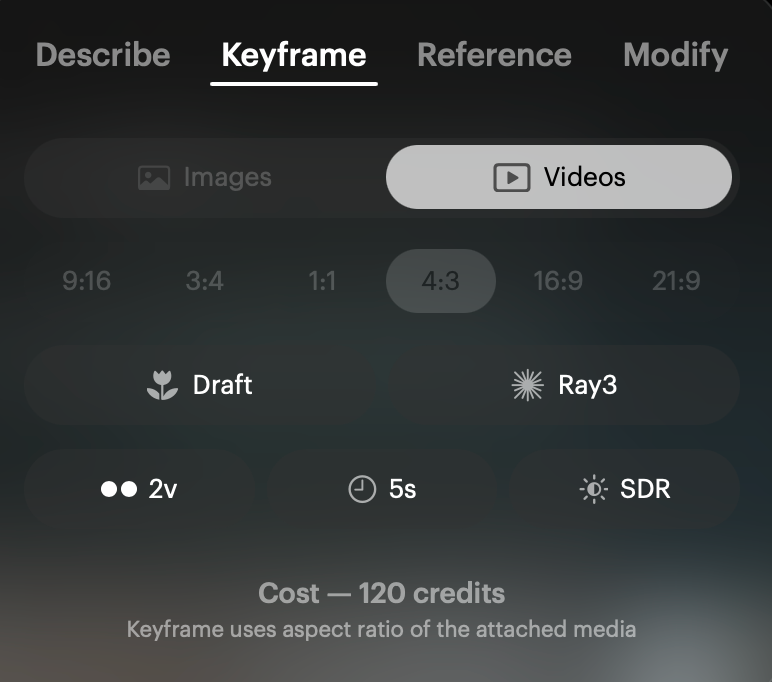
Ray3 Draft Mode is the recommended starting point for most users transitioning from Ray1.6. Ray3 is the latest model with significantly improved camera control and stability—perfect for controlled camera movements and architectural work. Draft Mode is 5x faster and more cost-effective for iteration, making it ideal for professional workflows. Ray3 understands directive language exceptionally well, allowing you to achieve the stable, controlled results you were accustomed to with Ray1.6.
Ray2 with Specific Prompting offers a different approach that responds best to shorter, more directive prompts rather than the detailed instructional style that worked with Ray1.6. Less is often more with Ray2. Additionally, Ray2 can be used via API, making it valuable for automated workflows and integration projects.
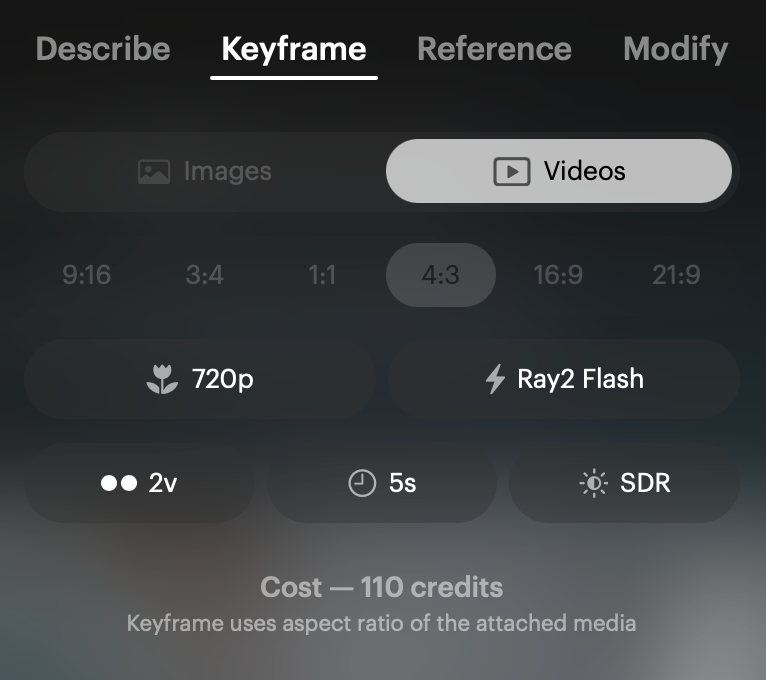
Ray2 Flash provides faster, more economical generations while maintaining good quality. This option is worth testing for specific use cases where speed and cost efficiency are priorities without sacrificing too much quality.
Prompting Technique Adjustments
The key difference when transitioning to Ray2 and Ray3 is adjusting your prompting style. Ray1.6 responded well to long, detailed instructional prompts. The newer models prefer shorter, more directive language that clearly states what you want without excessive explanation.
For example, when achieving stable, professional camera movements like a smooth push-in through a room, you have two effective approaches:
Option A: "locked viewpoint then very slow slow 2 feet forward smooth @Push_In in the corner of exactly same empty room."
Option B (Simpler): "locked viewpoint then very slow slow shallow smooth @Push_In exactly same empty room"
Both options use directive language and the @Push_In tag to specify the exact camera movement desired. Terms like "locked viewpoint" instruct the model to maintain stability without unwanted camera shake or drift.
Pricing Considerations
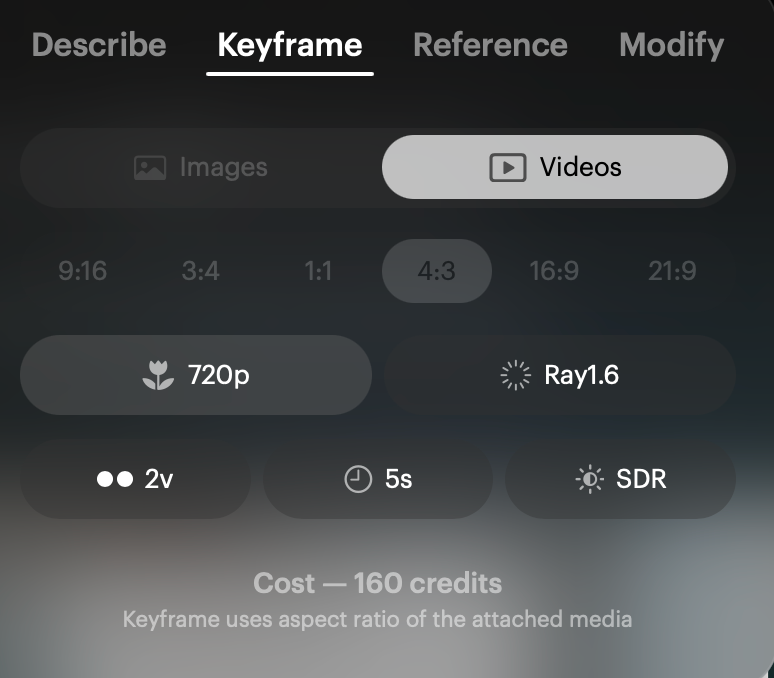
Pricing is very similar to Ray1.6 for Ray2 Flash and Ray3 Draft Mode, making the transition cost-neutral while providing improved performance and iteration speed. Ray3 Draft Mode's 5x speed advantage means you can test and refine your prompts more efficiently without increasing costs.
Working Examples and Resources
Luma Labs provides a board with working examples showing the exact approach and results you can expect with each model:
https://dream-machine.lumalabs.ai/share/board/5a0dd917-d6f0-4f2b-beef-3685a8d9d7c2
This board demonstrates real-world prompts and their outputs across different models, helping you understand which approach works best for your specific use cases. Ray3 Draft Mode provides easier workflow and more consistent results for camera control use cases.
Troubleshooting
What happens if my Ray2/Ray3 generations don't look as stable as my Ray1.6 results?: You're likely using prompts that are too long and instructional. Try shortening your prompt to use more directive language—remove explanatory phrases and focus on command words like "locked viewpoint," "smooth," and "slow." The newer models interpret concise instructions more accurately.
Why do my camera movements feel different than Ray1.6?: Ray2 and Ray3 have different motion characteristics optimized for newer capabilities. Start with Ray3 Draft Mode, which has the best camera control of all current models. Use specific movement tags like @Push_In and descriptive terms like "very slow slow" to achieve the precise control you need.
My prompts worked perfectly in Ray1.6 but produce unexpected results in Ray2/Ray3...: The newer models require a different prompting approach. Instead of detailed instructions, use shorter directive commands. For example, replace "Generate a perfectly stable, professional push-in movement into the room. The camera should feel mounted on a tripod..." with "locked viewpoint then very slow slow shallow smooth @Push_In exactly same empty room."
Which model should I choose for my workflow?: Start with Ray3 Draft Mode for the best camera control and fastest iteration. If you need API access, use Ray2 with adjusted prompting. If speed and cost are critical, try Ray2 Flash. Check the working examples board to see which model best matches your desired output style.
Frequently Asked Questions (FAQs)
1. Is Ray3 Draft Mode as high quality as Ray1.6 for camera stability? Yes, Ray3 has significantly improved camera control and stability compared to Ray1.6. Many professional creators find Ray3 Draft Mode matches or exceeds their Ray1.6 quality while being 5x faster for iteration.
2. Can I still use my old Ray1.6 prompts with Ray2 or Ray3? You'll need to adapt your prompts. Ray2 and Ray3 prefer shorter, more directive language rather than the long instructional prompts that worked with Ray1.6. Convert detailed explanations into concise commands for best results.
3. What does the @Push_In tag do in my prompts? The @Push_In tag is a movement directive that tells the AI you want a specific forward camera movement. Using movement tags like this helps the newer models understand exactly what type of camera motion you're requesting.
4. Will transitioning to Ray2/Ray3 cost me more than using Ray1.6? No, pricing is very similar to Ray1.6 for Ray2 Flash and Ray3 Draft Mode. Ray3 Draft Mode actually provides better cost efficiency due to its 5x faster generation speed, allowing more iterations in less time.
5. Which Ray model works with the API for automated workflows? Ray2 can be used via API, making it the best choice if you're building automated workflows or need programmatic access to video generation. Ray3 API access may be available—check current API documentation for the latest options.
Related Articles
Original Author: Chris Roebuck, Luma AI – Customer Support - Education
Original Creation Date: Fri, 14 Nov 2025 at 6:22 PM
Updated by: KB Conversion Team
Was this article helpful?
That’s Great!
Thank you for your feedback
Sorry! We couldn't be helpful
Thank you for your feedback
Feedback sent
We appreciate your effort and will try to fix the article